Compare four easing curves
Scrub the same moment across four movements. Each object starts at 0, ends at 100 and has the same duration. Only its easing changes. The graph’s horizontal axis is elapsed time; its vertical axis is distance travelled. A steeper section means faster movement.
Same start. Same finish. Different speed.
Move the time slider to compare four objects travelling from 0 to 100. Nothing plays automatically.
Constant speed
t
Slow start, accelerating
t³
Fast start, slowing down
1 − (1 − t)³
Slow start and finish
Piecewise cubic
At halfway through the duration, linear and ease-in-out are both halfway along the path. Ease-in has covered only 12.5% of the distance, while ease-out has covered 87.5%. All four still reach the same endpoint at 100% time. Easing changes the journey, not the scheduled finish.
These are the cubic presets in Chorono runtime 0.1.0. The familiar CSS keywords have the same broad acceleration patterns but use different Bézier curves, so their intermediate numbers differ. For CSS syntax and browser-specific definitions, see MDN’s easing functions guide.
Choose an easing for the action
- Linear: keep the speed steady
- Use a constant rate when the movement should feel continuous, such as an unbroken rotation. Linear also makes a useful baseline when comparing a curve. It does not automatically make an animation wrong or unfinished.
- Ease in: accelerate away
- Start slowly and gather speed. This can suit an object leaving a composition. Because more distance is covered late, check the final frames for an abrupt departure.
- Ease out: arrive and settle
- Start quickly and slow toward the destination. Try it for a short title entrance where the reader should find the final position promptly. Keep the travel restrained so the fast beginning does not distract from the words.
- Ease in-out: move between two resting states
- Accelerate from the first pose and decelerate into the second. Try it for a deliberate movement between two on-screen positions. Separate eased segments can each slow at their join, so check whether you wanted a pause or continuous travel.
Hold is another useful choice: keep the earlier value until the next keyframe. It creates a deliberate step instead of a gradual transition. Use it for a pose change or a timed state switch when smooth movement would communicate the wrong thing.
Find easing in a real Chorono project
The “Ideas in motion” project combines two easing choices. Its main title moves upward with ease-out from 0 to 1.2 seconds. The underline grows with ease-in-out from 1.2 to 3 seconds. They do not need the same curve because the entrance and the line reveal have different jobs.
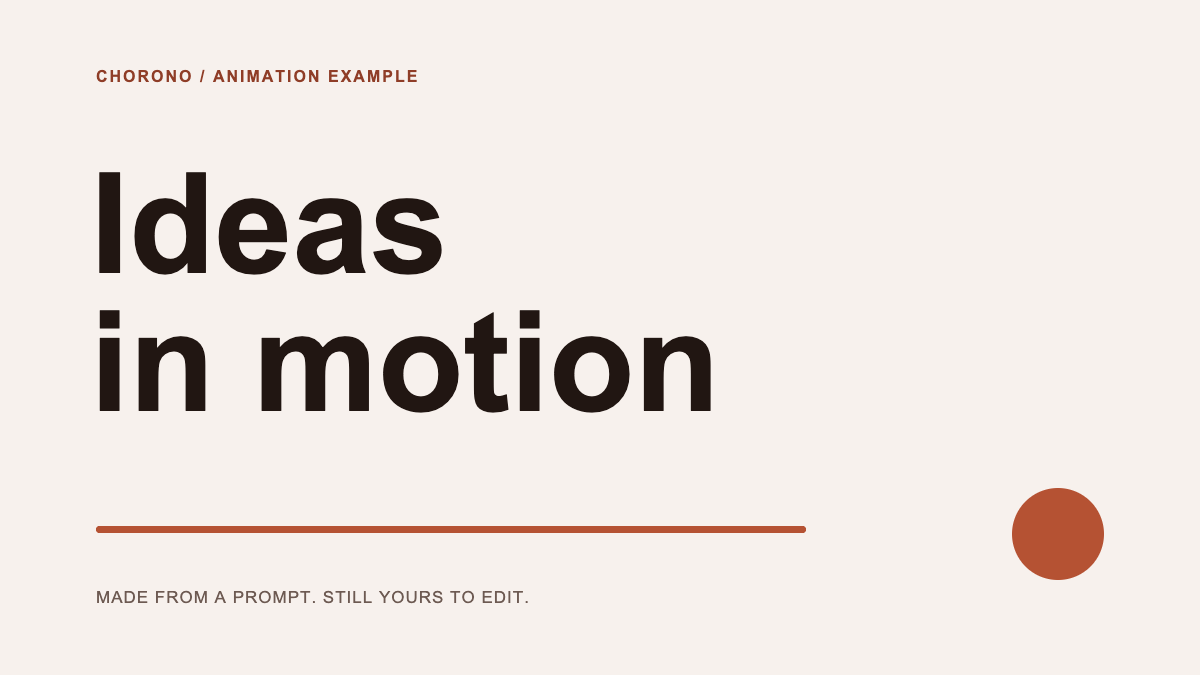
Download the scene and choose Open Scene JSON in a separate Chorono editor tab. Inspect the vertical-position track on “Title — Ideas”. Its first keyframe stores y = 192 at 0 milliseconds and has easeOut easing. The next keyframe stores y = 164 at 1200 milliseconds. In Chorono, the curve belongs to the interval leaving the earlier keyframe.
At 600 milliseconds, the title is at y = 167.5 with the original cubic ease-out preset. A linear entrance between the same values would place it at y = 178. Both end at y = 164. The ease-out version has already covered most of the 28-pixel rise by the midpoint.
This preview plays the existing seven-layer project through @chorono/runtime; it is separate from the four-curve comparison above. The portable download contains its original keyframes and can be edited in the local Chorono editor.
Change the curve without changing the brief
Compare one variable at a time. Keep the start value, end value and duration fixed while changing the easing. Otherwise a longer duration or shorter distance may explain the improvement you attribute to the curve.
With the Chorono skills installed and the editor connected, give Claude Code or Codex a specific revision:
Read the open Ideas in motion scene. Make a comparison copy. On Title — Ideas, change only the outgoing easing of the first vertical-position keyframe from easeOut to linear. Keep y = 192 at 0 ms and y = 164 at 1200 ms. Preserve the opacity track and all other layers. Inspect 0, 600 and 1200 ms, validate and save the copy so I can compare it with the original.Review the result before applying the same change to another property. An object can move linearly while fading with ease-out. If you need the two changes to feel linked, inspect their combined result as well as their individual tracks.
Review the movement in context
- Watch the start, midpoint and finish. Matching endpoints can hide a poor transition.
- Check the join between segments. A slowdown at every keyframe can interrupt a movement that should continue.
- Keep enough time for reading after a title settles. Easing does not replace a useful final hold.
- Inspect the animation at its intended display size. Large travel can feel excessive on a small interface.
- Provide a still state and playback controls when embedding motion. This comparison remains still until you move its slider.
If the endpoints or timing are still unclear, start with the keyframe animation guide. For a practical reading exercise, inspect the stagger and final hold in the text animation example.