Loading, progress and success serve different purposes
Use an indeterminate loading animation when you cannot measure how much work remains. Use a determinate progress bar when the application can report real progress. Show a success confirmation only after the operation actually succeeds. These examples are authored motion studies, not connected upload controls or evidence that a task has completed.
The six-second progress example uses illustrative timing. In a working interface, connect its visual state to the actual operation rather than letting a timer promise completion. The success example plays once and holds its message; repeatedly celebrating a completed action would distract from the next step.
Progress bar animation: play and download
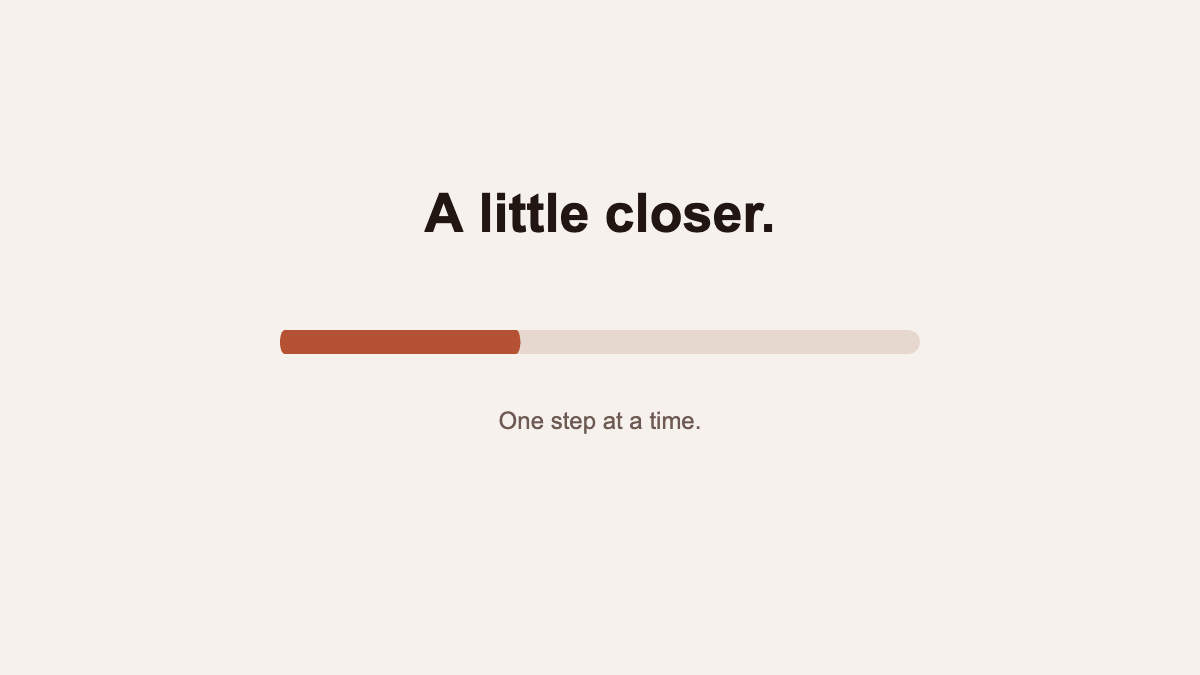
A little closer uses five named layers and three tracks. The 640-pixel fill stays anchored at its left edge. It starts at 0.5 seconds and reaches the end at 3.8 seconds; Ready to go fades in by 4.2 seconds. The final state holds until 6 seconds. Scrub the preview to inspect the starting edge, changing fill and completion message.
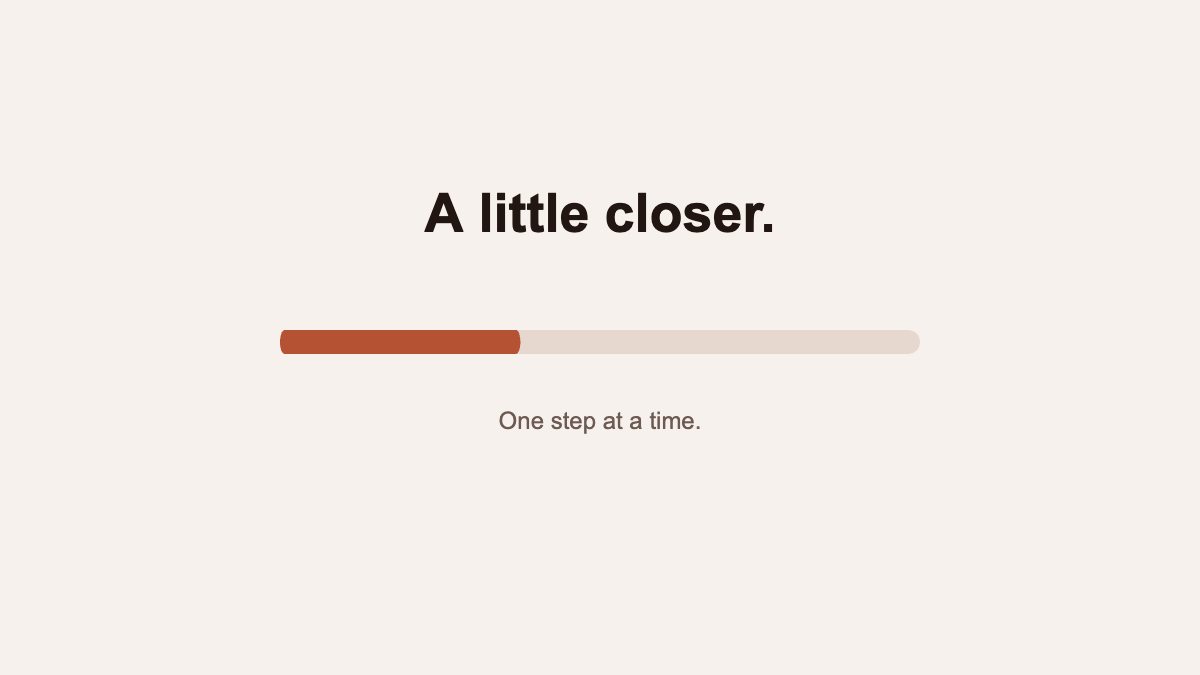
Use the chorono skill in a new connected editor scene. Create a 6-second, 1200 × 675 animation at 30 fps on cream #F7F1ED. Center the bold Arial headline “A little closer.” in dark brown #211612. Below it, place a 640 × 24 rounded track in #E7D8CF and a rust #B55233 fill. Keep the fill anchored at its left edge and animate its horizontal scale from 0 to 1 between 0.5 and 3.8 seconds with ease-in-out. Keep it full until 6 seconds. Show “One step at a time.” below the bar; fade that caption out from 3.5 to 3.8 seconds, then fade in “Ready to go.” from 3.8 to 4.2 seconds. Keep five named editable layers and an explicit non-looping timeline. Preserve unrelated work. Inspect real previews at 0, 2, 3.8 and 4.5 seconds, validate, save and reopen the portable Chorono JSON, and report its path.Read the saved progress-bar scene. Keep its text, colors, dimensions and left anchor. Make the fill reach the end at 4.6 seconds instead of 3.8. Fade out the first caption from 4.3 to 4.6 seconds and fade in Ready to go from 4.6 to 5 seconds. Keep the total duration at 6 seconds and hold the finished state. Preserve unrelated tracks. Inspect the middle and completion frames, validate and save a separately named revision.Success animation: play and download
All done uses five named layers and six tracks. A rust badge fades in during the first 0.4 seconds. Two white strokes reveal the checkmark from 0.35 to 1.1 seconds. The headline fades and rises into place by 1.4 seconds; the supporting text is visible by 1.7 seconds. Everything holds through the four-second endpoint.
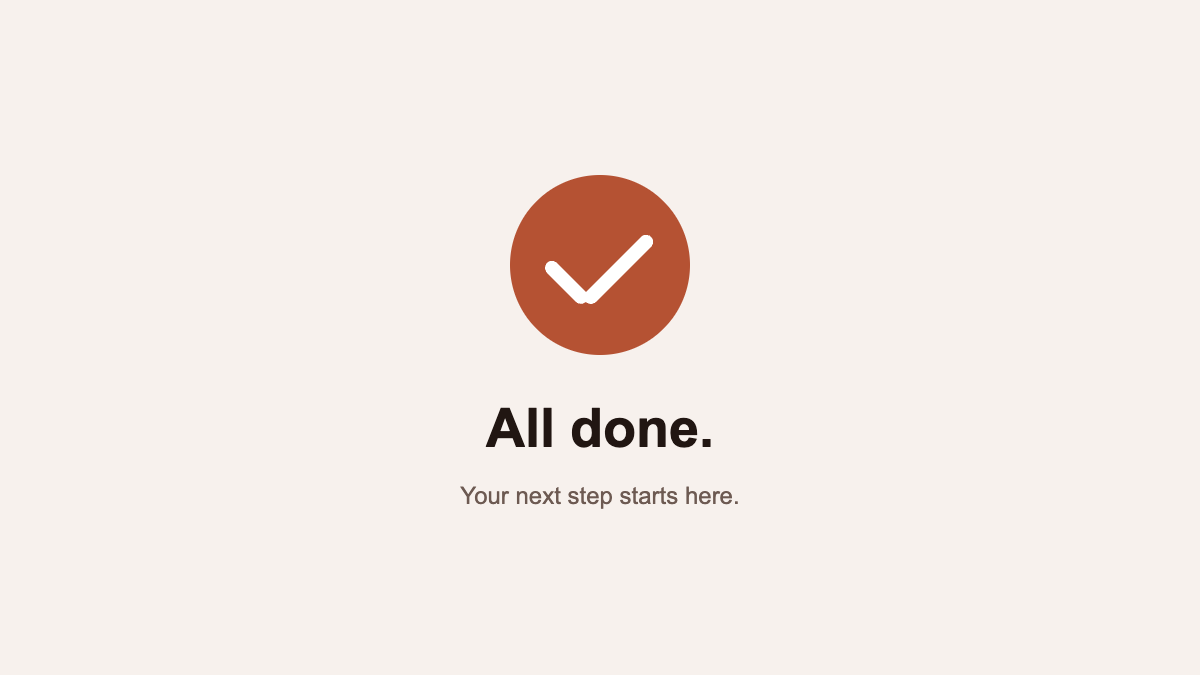
Use the chorono skill in a new connected editor scene. Create a 4-second, 1200 × 675 animation at 30 fps on cream #F7F1ED. Place a 180-pixel rust #B55233 circle centered horizontally in the upper-middle canvas. Fade it in from 0 to 0.4 seconds. Build a white checkmark inside it from two rounded editable strokes. Reveal the short stroke from 0.35 to 0.65 seconds and the long rising stroke from 0.62 to 1.1 seconds, using left-anchored horizontal scaling and ease-out. Below the badge, fade and move the bold Arial headline “All done.” upward by 16 pixels from 0.9 to 1.4 seconds. Fade in “Your next step starts here.” from 1.2 to 1.7 seconds. Use dark brown #211612 for the headline and muted brown #6D5A52 for the caption. Hold the complete layout until 4 seconds without looping. Keep five named editable layers and an explicit timeline. Preserve unrelated work. Inspect actual previews at 0.5, 0.9, 2 and 4 seconds, validate, save and reopen a portable project, and report its path.Read the saved success-confirmation scene. Keep the badge, checkmark, words, colors and four-second duration. Remove the headline’s vertical movement while retaining its fade. Finish both checkmark strokes by 0.9 seconds, then hold the completed confirmation. Preserve unrelated layers and tracks. Inspect the reveal and final hold, validate and save a separately named revision.Open the projects and make them your own
- Download the JSON underneath the example you want. Each file is a separate editable project.
- Open a separate Chorono editor tab and choose Open Scene JSON. Select the downloaded file.
- Edit named layers, colors and keyframes directly, or connect Codex or Claude through MCP and use the revision prompt.
- Save your revised portable project. Export runtime JSON separately when you need to embed it in a web application.
Both scenes use Arial and native shapes with no external media. The downloads contain the original examples; the revision prompts are optional next steps. The player uses @chorono/runtime and starts only when you choose Play. A runtime export is playback data, not a finished accessible web component or an MP4 file.
Use these motions in a real interface
Keep a text status outside the canvas so the result remains understandable without animation. Drive a real progress indicator from actual progress values, and announce a completed action only when the application confirms it. Color and the checkmark should support that message, not replace it.
Provide a static alternative for people who prefer reduced motion. These preview players do not autoplay; they offer pause and scrubbing. In your product, retain a readable final status and a clear next action instead of making animation a prerequisite for continuing.
Choose the progress-bar example for a motion prototype of a measurable task. Choose the success example for a completed save, submission or setup step. For an unknown wait, use the separate three-dot loop. The visual timing and copy should describe the actual state of your application.