Interactive UI animation · Field guide

Make a heart like and hamburger menu animation with AI

By 4 min read

Small interactions make a change of state visible. Try a heart that fills when liked and a hamburger icon that turns into a close button. Both examples respond to your click, keep their state until the next click and include downloadable editable projects.

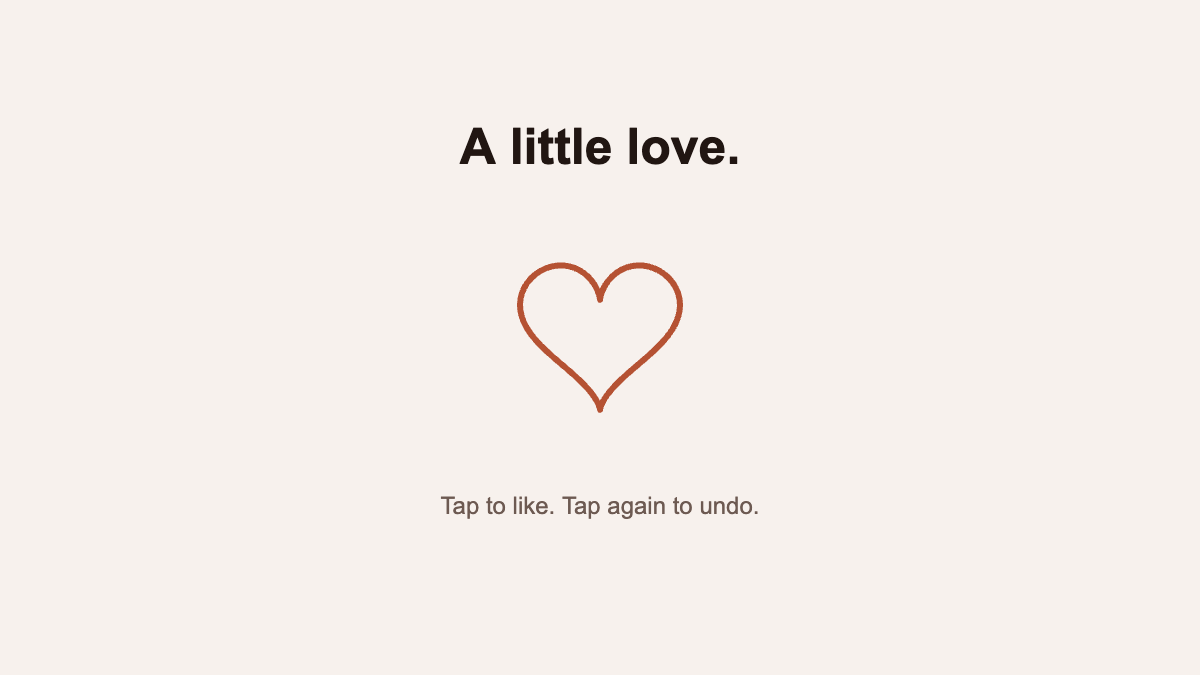
An outlined rust heart and A little love headline on a cream canvas.

Heart like animation: click, unlike and download

Click the canvas to fill the outlined heart and enlarge it to 108%. Click again to return to the outline. Three named layers keep the headline, heart path and hint separate. The Unliked and Liked states use two explicit timelines, with a 280 ms transition to liked and a 220 ms return. This demo stores no account data or like count.

Heart like — A little loveClick to toggle · 3 editable layers

Not liked. Click the canvas or press Enter or Space.

Download editable Chorono project · 20 KB JSON
Click-driven Chorono state transitions. No autoplay. Reduced-motion preferences skip the blend. The like state is local to this preview and resets when you leave.
Creation prompt · interactive heart like animation
Use the chorono skill in a new connected editor scene. Create a 1200 × 675 cream #F7F1ED canvas at 60 fps. Add the centered bold Arial headline “A little love.” in dark brown #211612, an editable rust #B55233 heart path below it, and the hint “Tap to like. Tap again to undo.” Keep three named layers. Create separate non-looping 300 ms timelines named unliked and liked, each holding a constant pose. Unliked has an outlined heart at scale 1; Liked fills the heart and scales it to 1.08 around its center. Add a state machine starting Unliked. The toggle event blends to Liked over 280 ms and back over 220 ms. Make the heart tappable and save a click trigger that emits toggle. Preserve unrelated work. Inspect both actual rendered states, test two clicks, validate, save and reopen the portable project, and export runtime JSON. Report the saved paths and any warnings.
Revision prompt · a quieter heart interaction
Read the saved heart-like project. Keep the three layers, layout, colors, click trigger and reversible states. Remove the scale change so the heart stays at scale 1 in both states. Retain the fill change and shorten both state blends to 180 ms. Test like and unlike, inspect both previews and save a separately named portable revision.

Hamburger menu animation: open, close and download

Click the canvas to bring the outer bars together and rotate them to +45 and −45 degrees. The middle bar fades out, leaving an X. Click again to restore the three bars. The six-layer project includes a transparent tap area and explicit Closed and Open states. Opening takes 280 ms and closing takes 220 ms. The links below the icon are real website links supplied by this preview, not navigation embedded in the downloaded scene.

Hamburger menu — Open to exploreClick to toggle · 6 editable layers

Menu closed. Click the canvas or press Enter or Space.

Download editable Chorono project · 14 KB JSON
Click-driven Chorono state transitions. No autoplay. Reduced-motion preferences skip the blend. Navigation links belong to this web preview; the project contains the interactive icon.
Creation prompt · interactive hamburger menu animation
Use the chorono skill in a new connected editor scene. Create a 1200 × 675 cream #F7F1ED canvas at 60 fps. Add the centered bold Arial headline “Open to explore.” and the hint “Tap to open. Tap again to close.” Add three editable rust #B55233 rounded bars, each 140 × 12 pixels, spaced 40 pixels apart with centered rotation anchors. Add a transparent tappable rectangle covering the icon. Keep six named layers. Create separate closed and open non-looping 300 ms timelines holding constant poses. Closed shows three horizontal bars. Open brings the outer bars to the middle, rotates them +45 and −45 degrees, and hides the middle bar. Start the state machine Closed; toggle blends to Open in 280 ms and back in 220 ms. Save a click trigger on the tap area that emits toggle. Preserve unrelated work. Inspect both rendered states, test opening and closing, validate, save and reopen a portable project, and export runtime JSON. Report paths and warnings.
Revision prompt · compact menu icon
Read the saved hamburger-menu project. Keep its title, hint, tap area, click trigger and reversible state machine. Shorten all three bars to 112 pixels and update their center anchors and horizontal positions so the icon stays centered. Keep the outer bars meeting at one center in the Open state. Use 200 ms blends in both directions. Inspect Closed and Open, test two clicks, validate and save a separately named revision.

Open the projects and connect them to your interface

  • Download the JSON underneath the example you want. Each is an independent editable project.
  • Open a separate Chorono editor tab, choose Open Scene JSON and select the download. Enter Preview or runtime test mode to exercise its click trigger.
  • Edit the named layers, states and transitions, or connect Codex or Claude through MCP and use the revision prompt.
  • Export runtime JSON for a website. Supply a native HTML button with aria-pressed for a like or aria-expanded and aria-controls for a menu. Keep navigation links in HTML.

These previews have no autoplay. Enter and Space activate their native buttons. The menu also closes with Escape and returns focus to its button. With reduced motion enabled, state changes happen without the animated blend. Inputs during the brief transition are ignored to avoid overlapping blends. Each example uses native shapes and Arial, with no external media. Downloaded projects preserve the icon interactions; browser accessibility, links and reduced-motion handling belong to the host page.