How the Codex animation workflow works
Codex is the agent you give instructions to. Chorono is the animation editor that holds the canvas, scene objects and timelines. MCP connects the two, while the bundled Chorono skills explain setup and animation authoring. Together they let you move from a written brief to a scene you can inspect and revise.
This workflow suits small interface illustrations, animated titles, loading loops and visual explanations made from text and shapes. Start with one clear motion idea. Keep the editor visible so you can judge the result yourself and use precise follow-up prompts.
- Install and register the local editor for Codex.
- Connect the browser scene and confirm that Codex can read it.
- Describe the layout, timing and motion in a prompt.
- Review previews, request a focused revision and save the project.
Play the three-dot loading loop and download the project
This four-second example was created in the connected Chorono editor with Codex. It has four named layers, three animation tracks and 24 keyframes. The headline stays still while the circles rise 40 pixels in two waves, with a 180-millisecond stagger. Every circle returns to its starting position before the loop repeats.
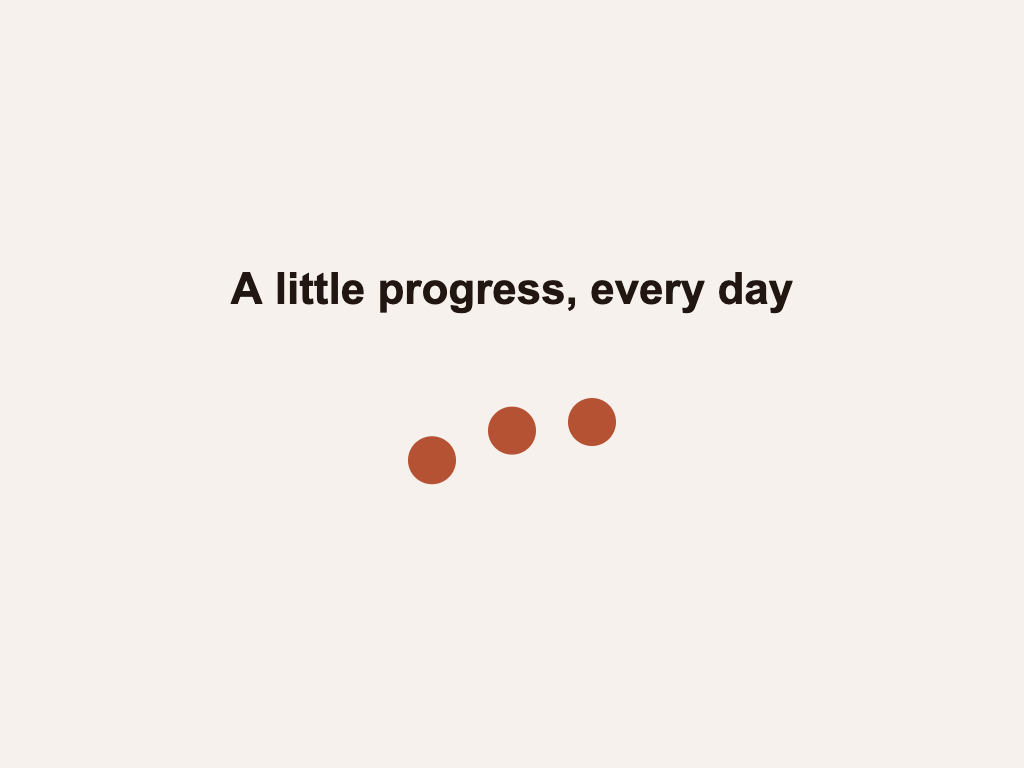
Download the portable project and choose Open Scene JSON in a separate Chorono editor tab. The 1024 × 768 scene uses Arial and native shapes, with no external media. Change the text, colors or keyframes manually, or use the prompts below. The revision prompt is an optional next step; the download contains the original 40-pixel movement.
1. Set up Chorono for Codex
You need Node.js 20 or later, npm, Git, a modern browser and a separately installed Codex client. Run the following commands in a terminal for a fresh editor checkout. If you already have a checkout, use it instead of creating a second copy.
git clone https://github.com/codie1982/chorono-editor.git
cd chorono-editor
npm ci
npm run cli:build
npm run chorono -- setup --agent codex
npm run chorono -- start --background --open
The Chorono setup command configures the MCP entry for Codex and places the bundled skills in the project’s .agents/skills directory. Its Codex integration uses the user configuration at ~/.codex/config.toml. Open this project in Codex and reload the MCP tools or start a new session after setup so the new configuration is available.
Codex supports MCP configuration in its configuration file. Use the Chorono setup command for this integration so the local server command and skill locations are installed together. Review a stale entry reported by setup before replacing an existing configuration.
2. Check that Codex can reach the scene
In the browser editor, open MCP and select “Connect this editor”. Keep that tab open while you work. Run doctor from the editor checkout to check configuration and connection status.
npm run chorono -- doctor --agent codexUse the chorono-setup skill to check this workspace. List the connected Chorono editor sessions, read the capabilities and inspect the current scene. If more than one editor is connected, identify them before choosing a scene. Do not change existing artwork during this check.A healthy HTTP response from the editor is only one part of the check. Codex also needs a connected editor session. If the session list is empty, reconnect in the editor’s MCP controls. Reconnect after a browser refresh and check the session list again.
3. Ask Codex to create an animation
A good brief defines a measurable sequence. The example below uses three dots, one headline and a short repeating motion. It tells Codex what should stay editable and when to inspect the scene, so you can evaluate the first result before extending it.
Use the chorono skill in the connected editor. Create a 4-second loop on a 1024 × 768 canvas with a cream background. Center the exact headline “A little progress, every day”. Place three rust-colored circles below it. Animate a gentle upward movement on each circle, staggered from left to right. Keep the headline still. Return every circle to its starting position before the loop ends so the seam is smooth. Name the text and each circle clearly, keep the animation editable and preserve any unrelated existing objects. Inspect previews at 0, 1, 2, 3 and 4 seconds. Validate and save a portable Chorono JSON project, then report the path.Watch the loop boundary as well as the middle. The last frame should join naturally to the first, the headline should remain readable and the dots should stay far enough from the text. Scrub the timeline to find any sudden jumps.
4. Revise an existing animation precisely
In the existing loading animation, reduce the circles’ upward travel by half and increase the delay between circles slightly. Keep the title, colors, object names and 4-second duration. Read the current scene before editing. Preserve unrelated layers and tracks, inspect the loop boundary again and save a revised portable project.Make one timing or layout change at a time when the first result is close. Give Codex the exact wording to retain and point to the specific object or timeline that needs attention. This is also useful when your project contains several independent animations: name the one you want to change.
Keep the portable project file as the source for later editing. For web playback, install @chorono/runtime in your application and follow its exported-scene playback documentation. The runtime is a separate package from the local editor and its MCP setup.
Troubleshooting Codex and Chorono
Skills are missing: make sure Codex is working in the project where setup installed .agents/skills. Instructions alone do not register the MCP server, so rerun the documented setup check if the tools are also missing.
Tools are present but no scene is available: keep the editor tab open, choose “Connect this editor” and ask Codex to list sessions again. Use doctor to distinguish a configuration problem from an unconnected browser.
You need to rebuild or reinstall dependencies: stop the managed editor server first with npm run chorono -- stop. Restart with the start command after the build is complete, then reconnect the editor.