What can Claude animate in Chorono?
Chorono gives Claude Code tools to work with an actual 2D animation scene through the Model Context Protocol (MCP). You can ask for a title entrance, a looping product illustration, moving shapes or particle effects. Claude uses the connected editor to create and adjust the scene, and you can inspect it on the canvas and timeline.
A useful first project is a short title card with one moving object. This is a small kinetic typography exercise: the words move into place while a shape and underline support the message. Chorono supplies the motion graphics editor; Claude Code interprets your prompt and operates it through MCP. This guide uses Claude Code running on your computer, with a local editor and its bundled setup and animation skills.
- You describe the composition and motion in plain language.
- Claude creates scene objects and animation tracks through MCP.
- You preview representative frames and request specific changes.
- You save a portable project that can be reopened and edited.
Play the text animation and download its project
“Ideas in motion” is a real Chorono scene with seven named layers, nine animation tracks and a six-second timeline. The title fades upward, the underline extends and the rust circle travels below the words before the final hold. Use Play or scrub the preview to inspect the timing.
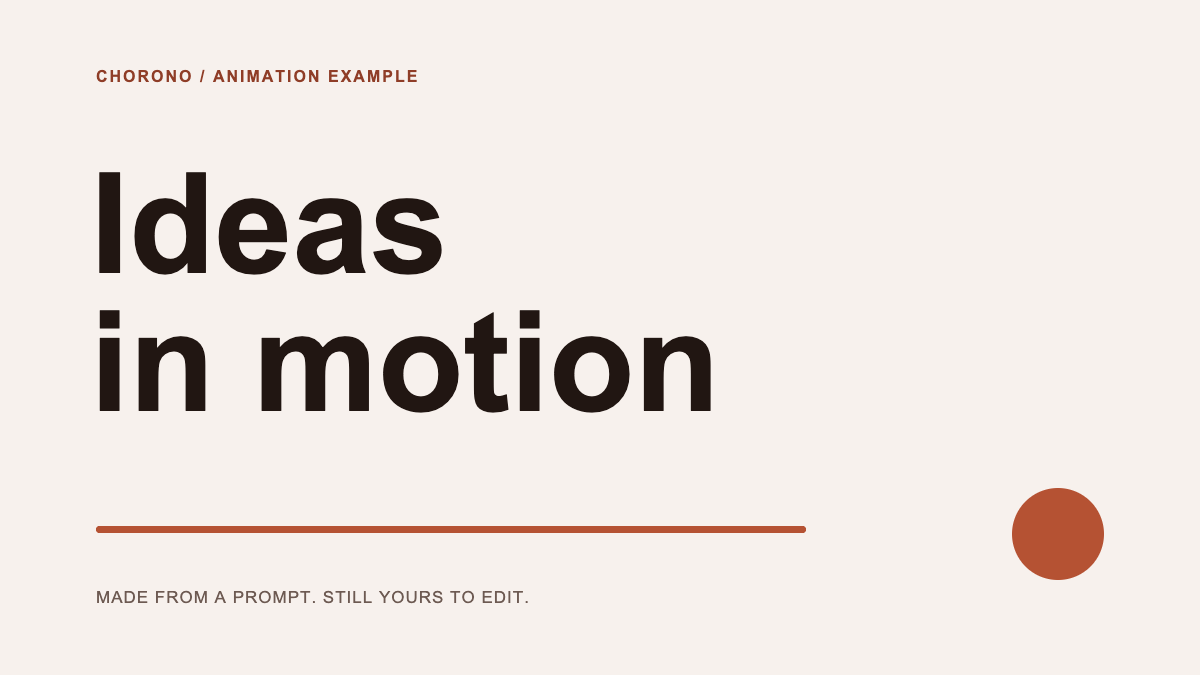
Download the portable Chorono JSON, open a separate editor tab and choose Open Scene JSON from the editor menu. Select the downloaded file to inspect or edit the text, circle and keyframes. The scene uses Arial and native shapes, so it needs no external images or media files.
1. Install Chorono for Claude Code
Start with Node.js 20 or later, npm, Git, a modern browser and a separately installed Claude Code client. In a terminal, clone the editor and build the local CLI. These commands assume a fresh checkout; use your existing checkout if Chorono is already installed.
git clone https://github.com/codie1982/chorono-editor.git
cd chorono-editor
npm ci
npm run cli:build
npm run chorono -- setup --agent claude-code
npm run chorono -- start --background --open
The setup command registers Chorono for Claude Code and installs the chorono-setup and chorono skills for the project. Open Claude Code in this project folder so it can load the project configuration and skills. Review the MCP entry when Claude Code asks to trust the project server. Reload its MCP connection or start a new agent session after setup.
2. Connect the browser editor to Claude
Keep the editor tab open. In Chorono, open MCP and choose “Connect this editor”. This connects the browser scene to the local MCP bridge. An editor page that loads successfully still needs this connection before Claude can control its contents.
npm run chorono -- doctor --agent claude-codeThe doctor command reports setup and connection problems. Ask Claude to list connected Chorono sessions and read the editor capabilities before creating anything. If several editor tabs are connected, tell it which scene to use. After reloading the browser, connect the editor again.
Use the chorono-setup skill to check my local Chorono connection. List the connected editor sessions, read the available capabilities and confirm which scene you will use. If the editor is not connected, explain the next setup step before creating objects.3. Prompt Claude to create the text animation
Specify the canvas, duration, text, colors and order of movement. Exact copy helps Claude keep your message intact. A short sequence is easier to review than a request for a complete promotional film with several unrelated scenes.
Use the chorono skill in the connected editor. Create a 6-second, 1200 × 675 title card at 30 fps with a warm cream background (#F7F1ED). Keep the exact title “Ideas” and “in motion” on two lines in dark brown (#211612), using bold Arial. Add the small label “CHORONO / ANIMATION EXAMPLE” at the top, a thin rust underline (#B55233) below the title, and one rust circle to its right. From 0 to 1.2 seconds, fade and move the two title lines gently upward into place with a small stagger. Between 1.2 and 3 seconds, extend the underline and move the circle along an arc below the title without covering the words. Fade in the footer “MADE FROM A PROMPT. STILL YOURS TO EDIT.” from 2.4 to 3.2 seconds. Hold the final layout until 6 seconds. Keep all seven layers named and editable on an explicit timeline. Preserve unrelated existing work. Inspect actual previews at 0.6, 2.2 and 3.6 seconds, validate and save a portable Chorono JSON project. Report the saved path.Review the actual previews. Check that the headline fits, the moving circle does not cover the text and the final hold is long enough to read. You can also scrub the timeline in Chorono and select the objects yourself.
4. Refine timing and save the editable scene
Keep the composition, text and colors. Make the circle arrive at 3.8 seconds instead of 3 seconds, and soften its final movement. Preserve all unrelated objects and animation tracks. Show previews just before and after the arrival, then save the revised project and report its path.Describe the outcome you want to change and the parts you want to preserve. A targeted request keeps the revision easy to compare. Ask for the saved file path at the end, then reopen that project to continue editing later.
For playback in a web application, the separate @chorono/runtime npm package can play exported Chorono scenes. Installing that runtime alone does not install the editor or connect Claude. Complete the editor and MCP setup first.
npm install @chorono/runtimeThe preview above uses this runtime with the exported scene. Keep the portable project as your editable source and use the runtime export for playback in your application. For a new text animation, change the message and timing in the prompt, then review the output again.
Common questions about Claude animations
Can I edit an animation after Claude creates it? Yes. Chorono keeps the scene objects, keyframes and timelines editable. Open the saved project to change it manually or ask Claude for another revision.
Why can Claude see the tools but not my scene? Check that the editor tab is open and that you selected “Connect this editor” in its MCP controls. Run doctor and ask Claude to list sessions again. A browser refresh can require reconnection.
Does this require adding a model API key to Chorono? The local MCP connection does not require a model provider API key in the editor. Your Claude Code account and access are managed separately by its provider.