
Try an AI-made animation that remains editable
Play Make it yours, a four-second scene with eight named layers, 13 animation tracks and 51 keyframes. The title and three circles are native editor objects. Download the portable project, then open it in a separate local Chorono editor tab with Open Scene JSON.
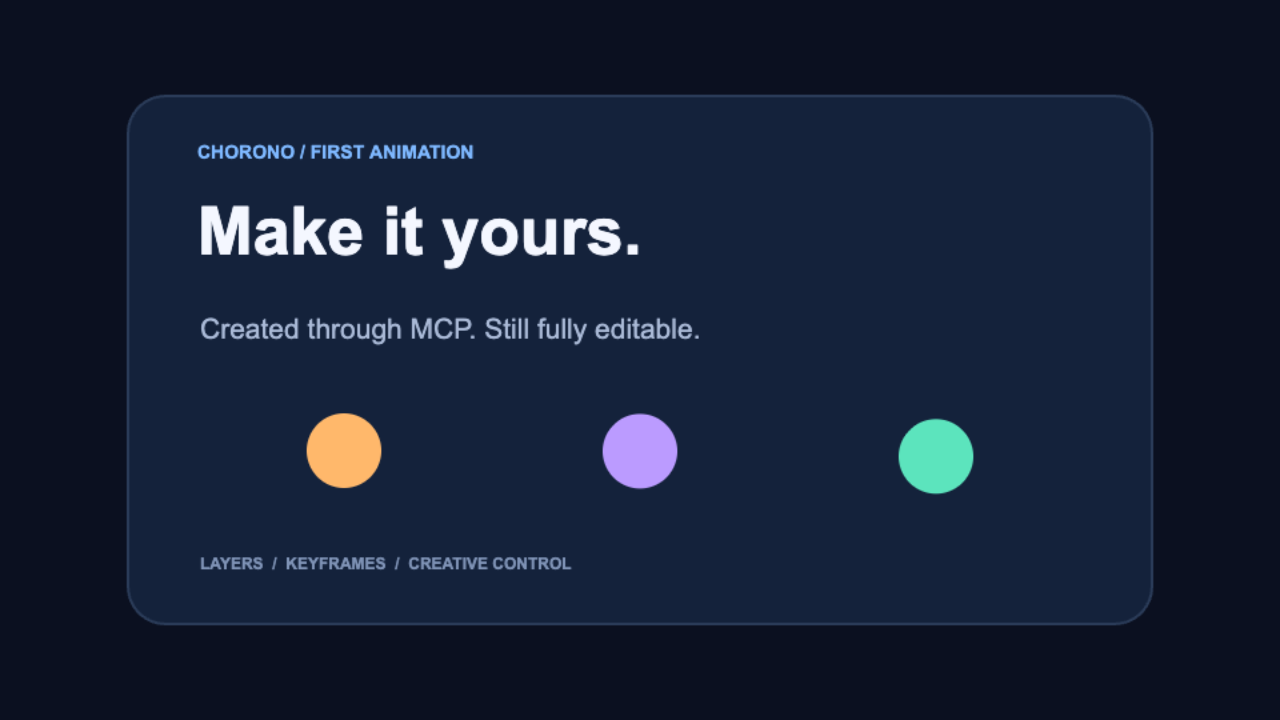
The preview shows the actual animation. The downloadable project keeps the text, color and motion values available to change. Chorono runs locally in your browser after installation; Claude Code or Codex is a separate agent client connected through MCP. This workflow creates editable 2D animation, not generated video footage.
Edit the AI-generated animation by hand
Select Editable headline in Layers and change its Content field to your own short phrase. Select Motion dot 1 and choose a new fill color. In the timeline, move the playhead to inspect how the dots travel; change one keyframe only after you have checked the starting and final states.
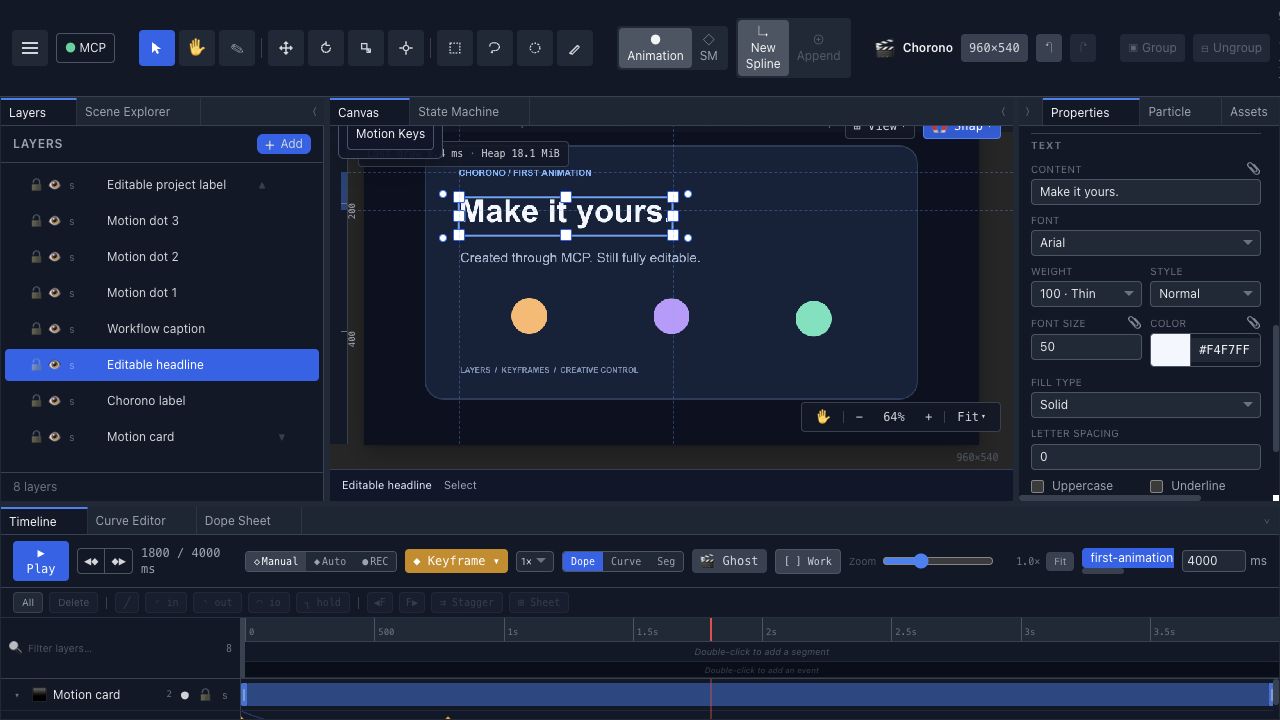
Play the whole four seconds after your edit. Save Scene JSON under a new filename and reopen it to confirm the text, color and timing are still present. Keep this portable project as the editable source for later revisions.
Ask Codex or Claude to revise the current scene
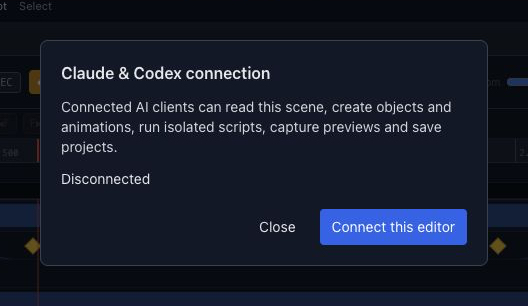
Connect the open editor through its MCP control. Ask the agent to inspect the current scene before changing it, name the one layer to revise and state which manual changes to retain. A focused request is easier to inspect than regenerating the whole composition.
Use the chorono skill and read the currently connected first-animation scene and its revision. I changed the Editable headline text and Motion dot 1 fill color by hand. Keep those values, all layer names, the eight layers and the four-second duration. Change only Motion dot 2 so its first upward movement starts 200 ms later; keep its starting and final positions. Preserve every other layer and animation track. Inspect frames around the changed movement, validate, save a separately named portable project and report what changed.Compare the saved project with your manual version before using it as the new source. Confirm your title and color stayed as you set them and that only the requested motion changed. If the scene changed after the agent read it, the agent should read the latest revision again before applying an edit.
Check what the AI animation actually did
A good-looking still frame cannot confirm motion. The November 2026 MotionGraphicsBench research from Figma and Stanford tests whether models follow pose, path and timing instructions when animating an existing design. It is a benchmark of model behavior, not a test of this Chorono project.
- Pose: compare the object’s starting and final positions with the brief.
- Path: scrub intermediate frames to catch a wrong direction or an unexpected jump.
- Timing: check which object moves first and whether linked events stay coordinated.
- Editability: reopen the saved project and change a named text layer or keyframe.
Use the project above as a small check. A revision should preserve the headline and color you changed by hand while moving only the requested dot. Inspect the saved result before treating the agent’s report as proof.
What kind of AI animation generator do you need?
If you want AI motion graphics made from editable text and shapes, Chorono gives you a local animation editor with layers, a timeline and keyframes. The agent helps make the first version; you can refine the scene yourself or request another targeted edit.
- For animated titles, loading loops and small 2D explainers, start with an editable Chorono project.
- For generated live-action or cinematic video footage, use a video generation workflow; the Chorono project shown here does not produce footage.
- For a finished MP4 or GIF, check the export workflow you need before choosing a tool. This example supplies an editable project and a browser playback preview.
A one-prompt result is a draft, not the limit of the workflow. The practical test is whether you can select a layer, change a value, save the source and continue working on that same scene.
Questions about editable AI animation
Can I edit an AI-generated animation after creating it? In this Chorono example, yes: open the portable project and change its native text, shape and keyframe values in the editor.
Will a later Codex or Claude request keep my manual changes? A targeted revision can read the current scene and preserve unrelated values. Check the result before saving it as your next source; a request that replaces entire objects or uses an old scene state needs correction.
Is this an instant online AI video generator? No. Install and run the Chorono editor locally, connect your own Claude Code or Codex client through MCP, and work with editable 2D scene data.