Skip to content
Skip to content
AI & scripting

Connect your AI agent with MCP

Use Claude Code or Codex to create and revise an editable scene in a real Chorono editor. MCP is the connection that gives the agent access to editor tools; the Chorono skills explain how to use those tools.

Prepare your workspace#

Follow Installation to download Chorono and prepare your chosen client. For an existing checkout, the setup commands can select one client:

npm run chorono -- setup --agent codex

Use --agent claude-code for Claude Code. Setup preserves existing configuration; review a stale entry through Troubleshooting before replacing it. Your chosen agent client must be installed separately.

Connect the editor tab#

npm run chorono -- start --background --open

Open the printed address and choose MCP → Connect this editor. Keep the browser tab open. After setup changes the client configuration, reload the client's MCP connections or start a new agent session.

Refreshing the browser tab requires connecting it again. Installing a skill alone does not connect the tab.
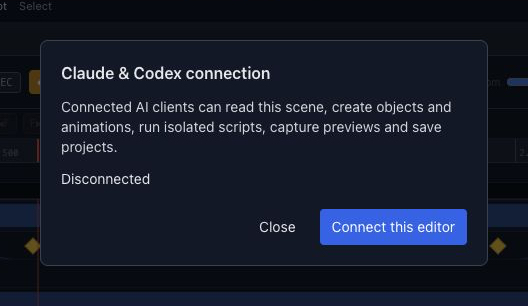
Chorono Claude and Codex connection dialog in its Disconnected state, with the Connect this editor button
Open MCP in the editor header, then choose Connect this editor. This screenshot shows the state before connection; afterward the dialog reports Connected. Keep that editor tab open while your agent works.

Want to test the connection with a real animation? Follow Make an editable animation with Codex to create a four-second loop, inspect its motion and download the project.

Check the connection#

Use the same client selector that you used during setup:

npm run chorono -- doctor --agent codex

Ask the agent to call list_sessions, get_capabilities and get_scene before editing. If multiple editors are connected, identify the intended session explicitly. A healthy local server is not proof that the agent can reach your scene.

Give the agent a clear brief#

Use the chorono skill to inspect the connected editor. Create a short title animation with editable text and shapes. Name the layers, preserve unrelated work, inspect real preview images and validate the scene. Save a portable project and report its path.

Specify the canvas size, exact copy, duration and the change you want. Keep later revisions focused on one part of the scene. The first-animation tutorial includes an exercise with exact layer names.

Keep the result editable#

Inspect the animation in the editor, then keep the saved portable project. You can continue with manual changes or another focused agent revision.

Read Agent skills for installation and update details, or JavaScript scene scripting for the isolated authoring API. For an empty session list, use Troubleshooting.

A good place to start
Getting started / Chorono documentationChorono documentationLearn Chorono with editable animation examples. Install the editor, edit keyframes, build loops and connect Claude Code or Codex through MCP. Cre…Getting started / Install ChoronoInstall ChoronoSet up the free, open-source animation editor on your computer and start a local browser session. This guide installs the browser editor, its loc…Getting started / Create your first editable animationCreate your first editable animationOpen an editable Chorono example, change its text and colors, inspect the timeline, then save and reopen your first 2D animation. Start with a re…Workspace / Chorono editor workspaceChorono editor workspaceFind the canvas, layers, properties, timeline and resource tools in the Chorono editor. Choose a guide for each part of your animation workflow.…Workspace / Canvas and drawing toolsCanvas and drawing toolsNavigate the canvas, draw shapes and splines, use snapping and edit motion keys in Chorono. Use the canvas to arrange the objects in your composi…Workspace / Choose a drawing or transform toolChoose a drawing or transform toolUse Select, Pan, Pen, Move, Rotate, Scale and Anchor tools without losing track of the active editing mode. Choose the tool that matches the edit…Workspace / Select exactly the objects you needSelect exactly the objects you needUse box, lasso, circle, paint and rule-based selection to work with several animation layers. When several objects overlap, clicking each one can…Workspace / Align objects with guides and snappingAlign objects with guides and snappingSet grid, object, point, guide, pixel, angle and scale snapping for precise placement in Chorono. Snapping helps a dragged object settle on an ex…Workspace / Edit Bézier points and spline curvesEdit Bézier points and spline curvesDraw editable paths, adjust points and handles, and extend or close a spline in Chorono. A curve is easier to control when you can see the points…Workspace / Edit animation positions on the canvasEdit animation positions on the canvasUse Motion Keys to adjust position keys, draw a movement and control how the path is timed. Motion Keys bring position editing onto the canvas. T…Workspace / Layers and scene hierarchyLayers and scene hierarchySelect, name, group and organize scene objects in Chorono using the Layers panel and Scene Explorer. A layer is an editable object in your Choron…Workspace / Draw and edit basic shapesDraw and edit basic shapesCreate rectangles, circles, polygons and procedural shapes, then adjust their geometry in Properties. Basic shapes are a useful starting point fo…
Explore the docs