
Create your first editable animation
Start with a real 2D animation, change its text and color, and save a project you can reopen. You will use layers, an animation timeline and keyframes without drawing every frame yourself.
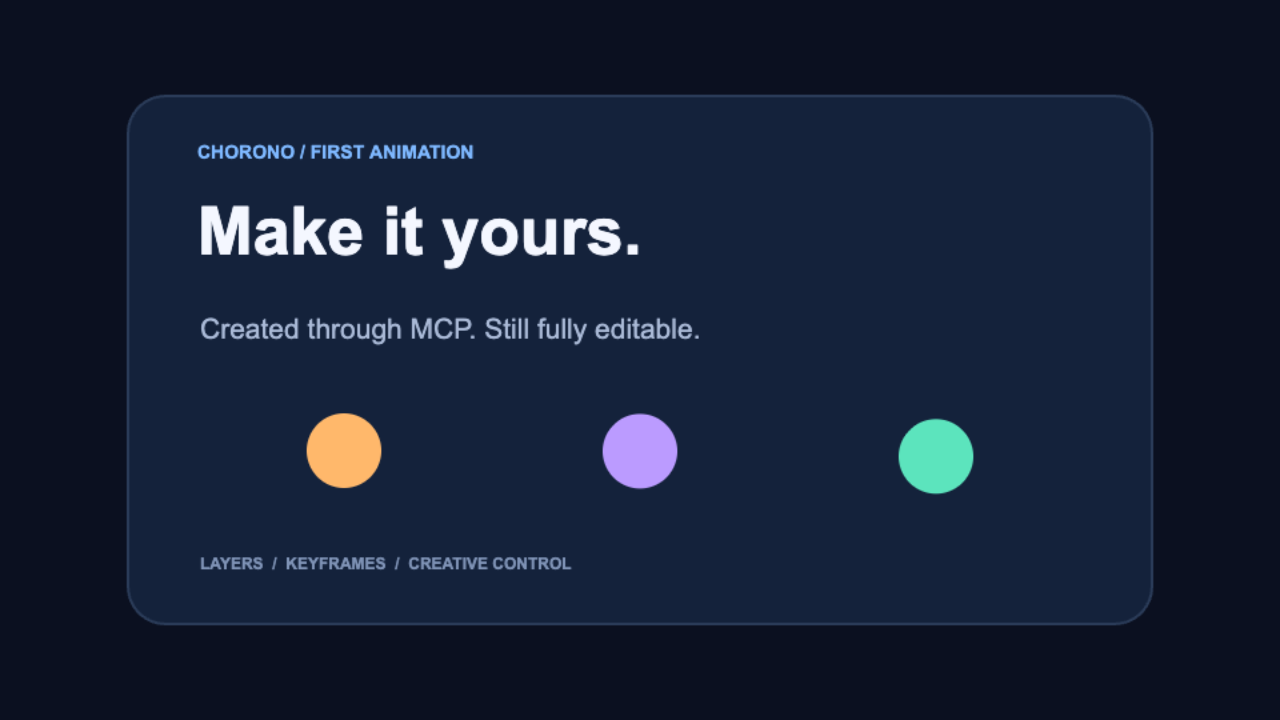
Chorono is a free, open-source editor that runs locally in your browser after setup. You can complete this tutorial manually. Claude Code or Codex is optional; those providers manage their own access separately.
Before you start#
Follow the installation guide to prepare and start the editor. It lists the current Node.js, npm, Git and browser requirements, with commands for macOS, Linux and Windows.
Open a separate Chorono editor tab for this exercise if you already have another project open. Keep a saved copy of work you want to retain.
1. Open the example project#
Download the first-animation ZIP, or use the project JSON. If your browser displays JSON, save it as first-animation.chorono.json.
In the editor, choose Menu → Open Scene JSON and select the project. Select the first-animation timeline and press Play. Pause around 1800 ms to inspect the visible scene.
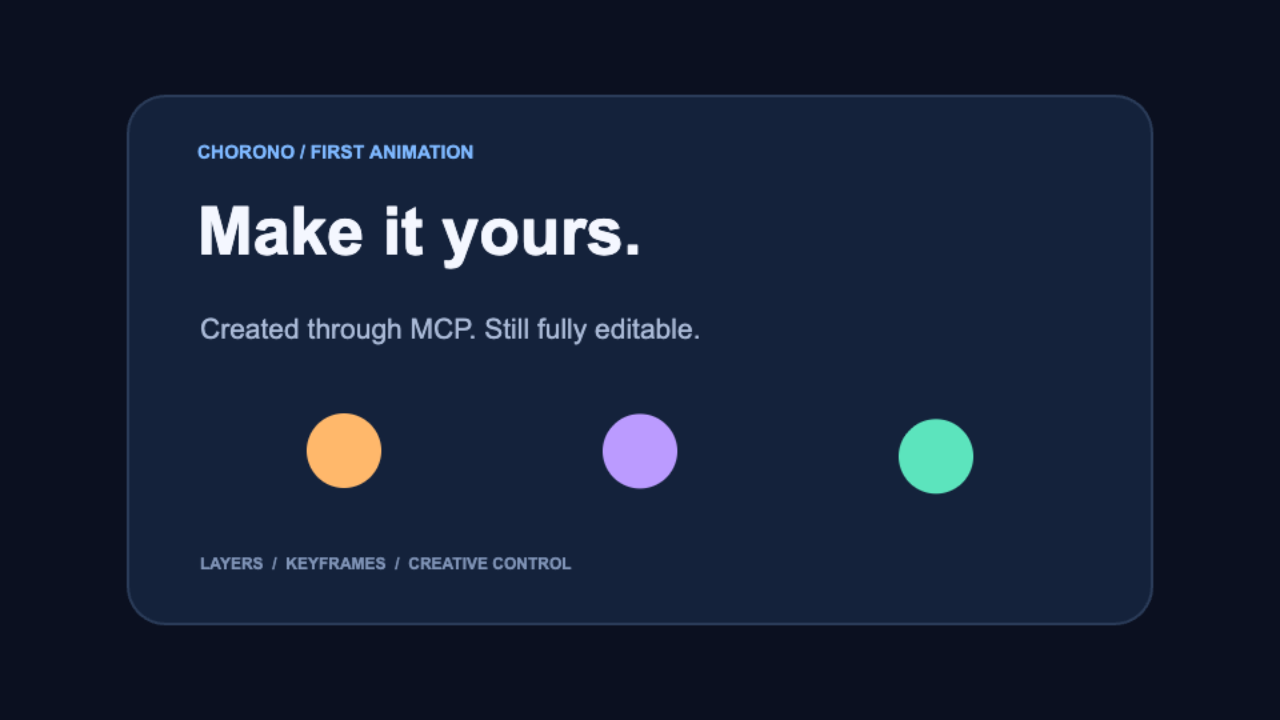
The existing example uses a 960 × 540 canvas, a four-second composition and 30 frames per second. It contains eight named layers, 13 animation tracks and 51 keyframes. All graphics are native text and shapes; the file has no external image, audio or font assets.
2. Find the layers and animation tracks#
A layer is one scene object, such as a title, circle or background. A track stores animation for one property of a layer. A keyframe stores that property's value at a particular time.
In the layer list, find Editable headline, Workflow caption and Motion dot 1. Select one layer and inspect its properties. Then inspect its tracks in the timeline and move the playhead, the marker showing the current time.
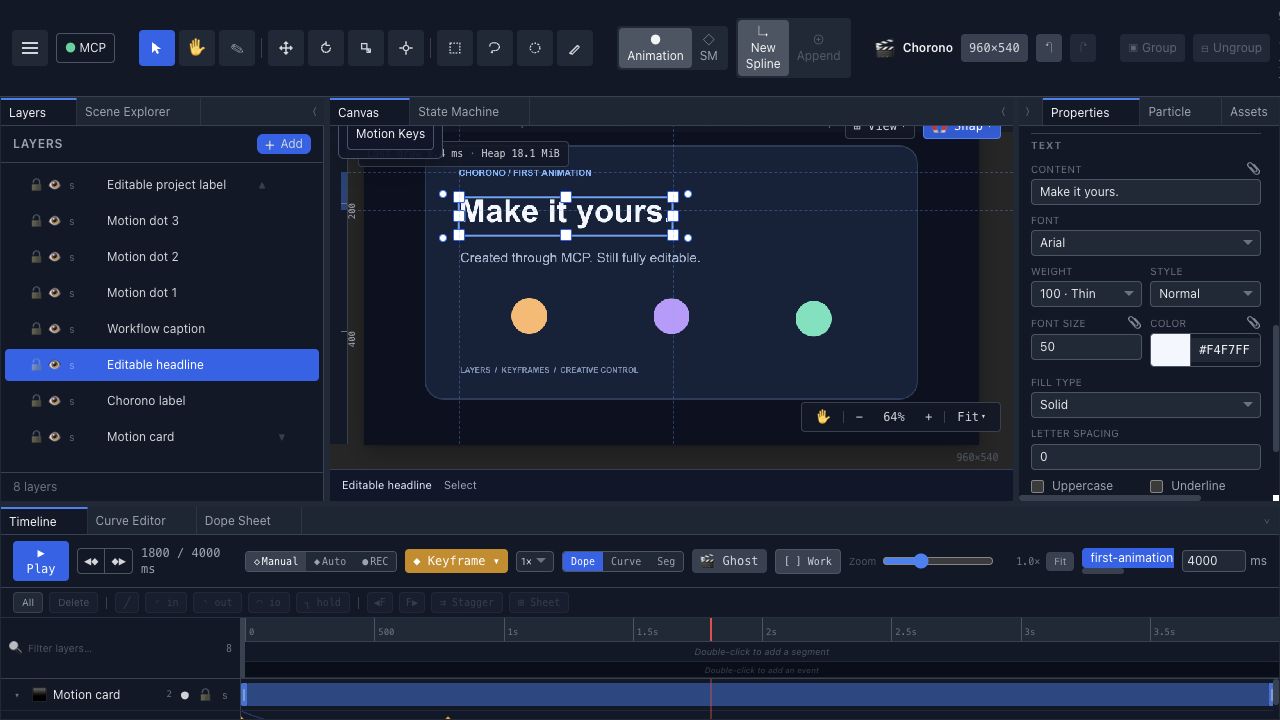
A position track changes where the layer appears. An opacity track changes how visible it is. Selecting a different layer changes the properties you are inspecting.
For a separate explanation of these concepts, see the keyframe animation guide. This exercise focuses on editing the supplied Chorono project.
3. Change the title and one color#
Select Editable headline. In the Text section of Properties, change Content to a short phrase of your own. Keep the text inside the card; shorten the phrase or adjust its font size if it does not fit.
Select Motion dot 1 and change Fill Color. Play the scene again to see the new color in motion. Keep the layer names so you can refer to the same objects in a later revision.
The existing example already contains the headline “Make it yours.” and an orange first circle. Your saved revision should make a further visible change, so you can distinguish it from the original.
4. Inspect the timing#
Scrub through the start, the entrance and the final state. Check that the headline remains readable when the dots move and that the final message stays visible long enough to read.
The timeline's times are in milliseconds: 1000 ms is one second. At 30 fps, one frame is approximately 33.33 ms. Frame rate describes the sampling interval; changing a keyframe's time changes when its stored value is reached.
When you start editing keyframes, change one track at a time. Compare the start, midpoint and finish. For how acceleration changes the movement between keys, use the easing comparison.
5. Save and reopen your animation#
Choose Menu → Save Scene JSON. Keep the downloaded file under a name such as my-first-animation.chorono.json.
Open another editor tab and choose Open Scene JSON to load that saved file. Confirm your headline, color and animation are present. The portable JSON is the editable project; keep it for future revisions.
Saving a portable project is different from exporting playback data or rendering a video. This tutorial produces an editable scene and does not promise a specific video format.
Optional: ask an AI agent to revise the same scene#
Follow Start and connect, then install or check the Chorono skills. The agent must see the connected editor session before it can read the scene.
Read the open first-animation scene. Change only Editable headline to “Keep ideas moving.” and Motion dot 1 to blue. Keep the eight layers, four-second duration and existing keyframe timing. Adjust the headline size only if needed to fit. Preserve unrelated work. Inspect representative preview images, validate and save a separately named portable project. Report the saved path.
Review the result in the editor before asking for more changes. A skill supplies task instructions; MCP supplies the connection and tools. A successful server check alone does not prove this editor tab is connected.
Continue learning#
- Make a looping animation: reduce the movement in a three-dot loop and check its boundary.
- Timeline: explore tracks and keyframe editing in more detail.
- JavaScript scene scripting: create native scene objects and animations through MCP.
- Troubleshooting: resolve startup, connection or skill problems.
The example, prompt and opening instructions are maintained together under examples/first-animation.