
Set up and save an animation project
A project starts with a composition: the area you draw in and the time your animation occupies. Set those before arranging a finished layout so you have a useful frame of reference.
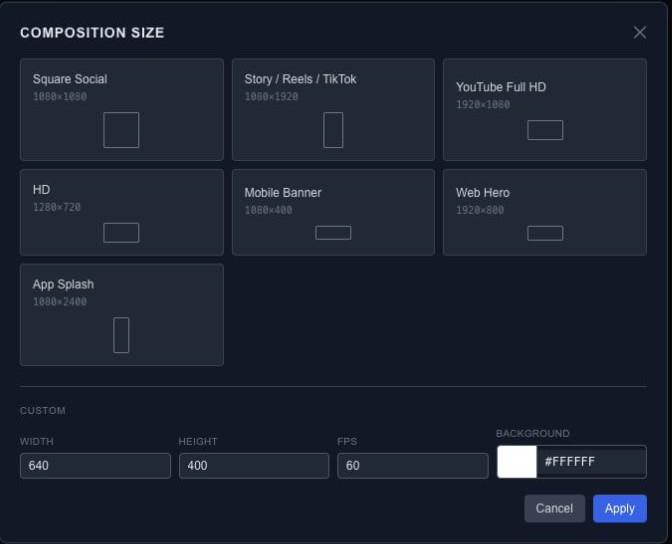
Choose a composition#
Click the size button in the top toolbar. Choose a preset or enter a width and height in pixels, then set the frame rate. Set the duration in the composition controls in Properties. A wider composition gives you more room; zooming the canvas only changes your view of it.
With no layer selected, Properties also exposes the composition's dimensions, duration and background. Use a solid color or a gradient to establish the background before checking text contrast.
Keep an editable copy#
Open Project → Save Scene JSON to download the scene. Choose Save Folder enables folder saving in a browser that supports it; Save Version creates a timestamped snapshot. If folder access is unavailable, the JSON download remains the way to keep a copy.
Use Inspect Scene JSON when you need to examine the source, or Copy Scene JSON to copy it. For reopening and portable media, continue with Project JSON.
Arrange the workspace#
Drag a dock tab to move a panel, or drag a divider to resize it. A closed panel can be restored from the File menu. Reset Panel Layout restores the workspace arrangement; it does not replace your animation.
Automatic local recovery#
Completed source edits are saved locally even before you choose a folder. Saved locally means the browser has a recovery record; it does not mean a project file was downloaded or uploaded to the cloud. If Local save failed appears, use Retry. A failed write does not replace the last good record.
Reload restores the current source before a demo scene can overwrite it, including geometry, keys, guides, parameters and authorship information. Bounded Undo/Redo can also return: up to 50 combined steps, subject to an approximately 64 MiB source-data estimate. Older history may be pruned while keeping the current scene. This estimate is not browser RAM usage.
Selection, transient previews and runtime caches are outside recovery history. A new edit clears Redo; the first timeline becomes active when the project is restored.
Browser storage belongs to an origin and profile. localhost, 127.0.0.1 and different ports can have separate records. Clearing site data can remove recovery, so save an external project JSON for a portable backup.
Project sessions and downloaded files#
A new document has its own project session ID. Downloads can include a session suffix; supported folder saves use sessions/<sessionId>/ to keep sessions apart. The project's persistent session is separate from an MCP connection session.
Save Scene JSON can include the portable recovery envelope with session and history. Inspect / Copy gives source scene data. MCP save uses its own documented portable format; do not assume all three outputs have the same envelope.
Continue a project with an AI assistant#
Before an assistant edits source data, it must read the current scene and use the returned revision and one-use read token. If the scene changes, it must read again and adapt. A script dry run returns a plan to review and apply through the isolated QuickJS bridge.
Authorship records help explain how content changed; they do not grant permission to overwrite manual work. Missing authorship is unknown. Preserve unrelated objects and animation, and follow the MCP workflow when continuing a shared project.