
Chorono editor workspace
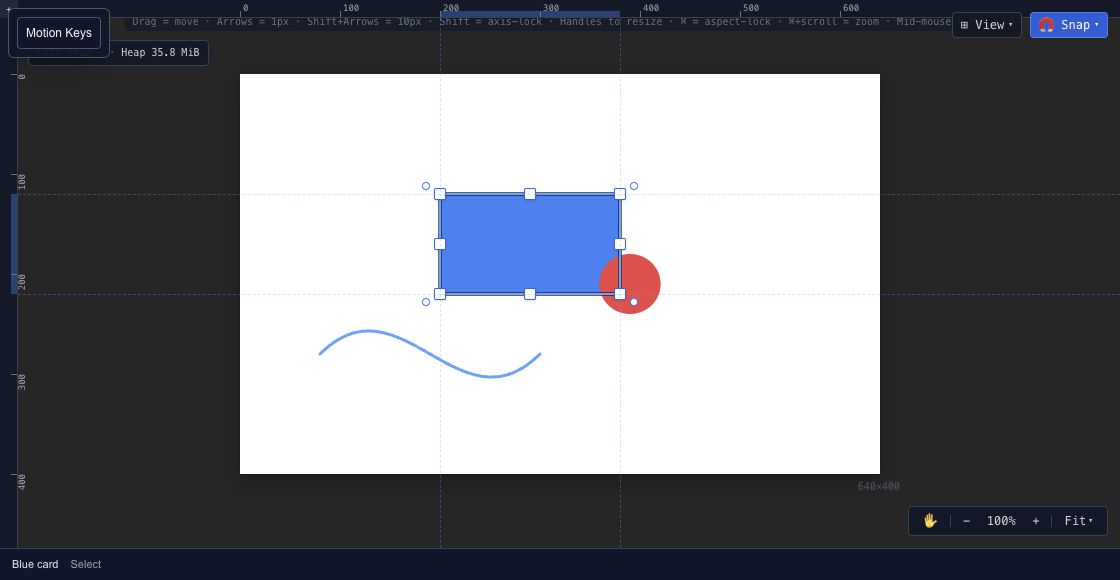
The Chorono editor keeps your scene, animation and interactions in one editable project. Start with the canvas in the center, the scene hierarchy on the left and the selected layer's properties on the right.
In this section
Canvas & tools
Navigate the canvas, draw shapes and splines, use snapping and edit motion keys in Chorono.
Layers & hierarchy
Select, name, group and organize scene objects in Chorono using the Layers panel and Scene Explorer.
Properties & effects
Adjust transforms, appearance, effects and motion for a selected Chorono layer, then animate supported values with keyframes.
Resources & performance
Inspect project resources, media and rendering measurements in Chorono without confusing tracked resource estimates with total process memory.
Keyframes
Inspect a property track, change a keyframe value and compare the movement in a real editable project.
Timeline & playback
Read animation tracks, scrub the playhead and understand milliseconds, frames and independent timelines.
Looping animations
Make a looping animation in Chorono. Inspect a three-dot example, adjust its keyframes and stagger, and check the loop boundary before saving.
State machines
Connect animation states and transitions in Chorono, then test parameters and interaction events before runtime export.
Projects & saving
Choose a canvas size and frame rate, save an editable scene and keep project versions in Chorono.
Assets & media
Inspect imported media, add it to the composition and keep assets portable when saving or exporting.
Preview & playback
Compare timeline playback with runtime interaction, inspect parameter changes and test the exported player.
Keyboard shortcuts
Search the editor’s shortcut reference and use the commands that match your current editing context.
Find your way around#
| Area | What it is for | Guide |
|---|---|---|
| Top toolbar | Select and draw, switch modes, preview, save and export | Canvas & tools |
| Canvas | Place objects and inspect the composition | Canvas & tools |
| Scene Explorer / Layers | Select, name and organize objects | Layers & hierarchy |
| Properties | Change the selected layer's appearance and behavior | Properties & effects |
| Timeline, Curve Editor, Dope Sheet | Edit time, property tracks and easing | Timeline & playback |
| State Machine | Connect animation states and transitions | State machines |
| Resources & Performance | Inspect tracked resources and rendering work | Resources & performance |
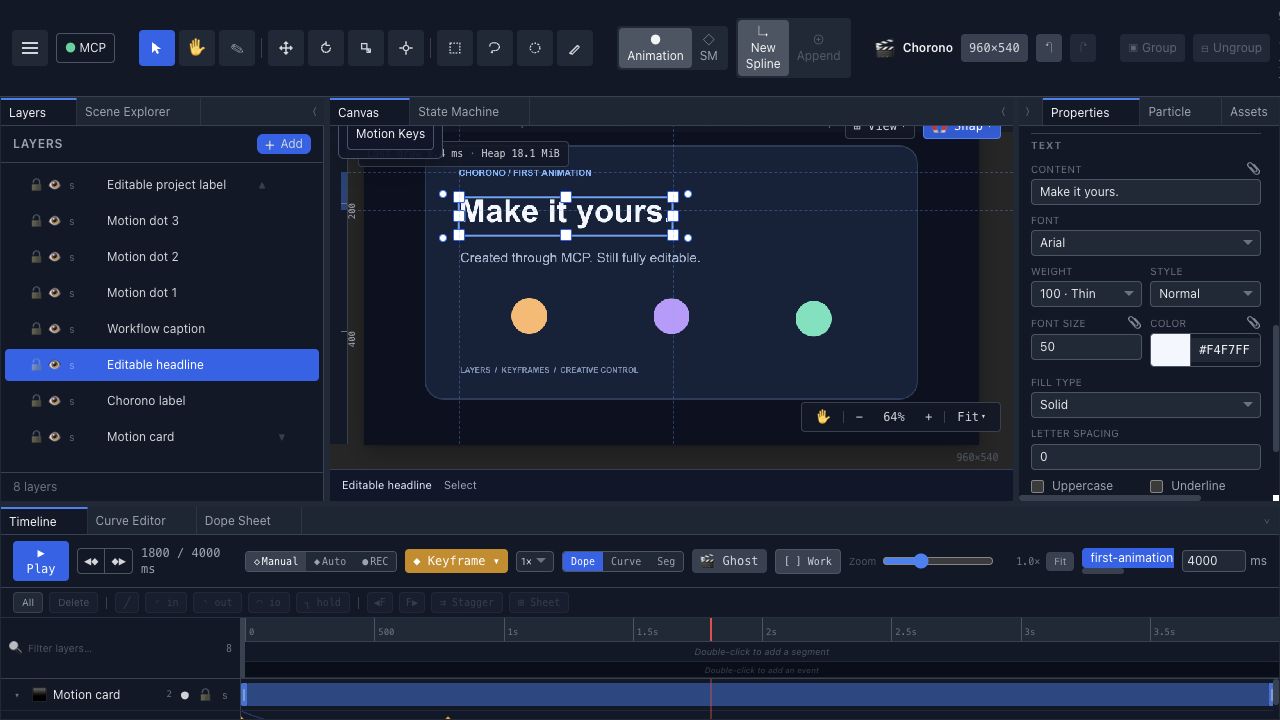
Make a small edit#
- Open the project in Your first animation.
- Select a named layer in the Layers panel.
- Change one static property, such as its fill color.
- Scrub the timeline to inspect the animated result.
- Save an editable project and reopen it.
For motion, continue with keyframes and looping animations. Select the intended timeline before editing a scene that contains multiple animations.
Preview, save and export#
Preview checks the current scene's playback. Saving preserves the source you can edit later. Export creates a delivery format for another context. Choose the Export guide for images, HTML or runtime JSON, then use Runtime when embedding playback in an application.
Work with an agent#
You can edit manually or connect an AI agent through MCP. The agent works with the same native scene. JavaScript scripting provides procedural authoring; it is separate from the playback SDK used by a website.