
Align objects with guides and snapping
Snapping helps a dragged object settle on an exact target. Start with the targets you need for the current task; enabling every target can make a crowded scene harder to position.
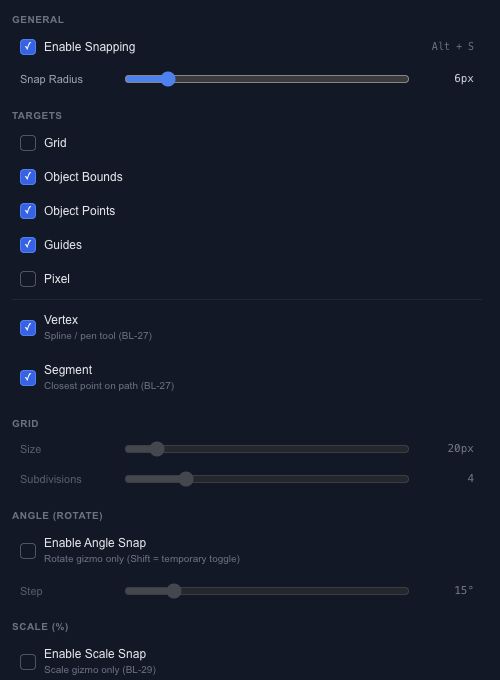
Choose targets#
Open Snap on the canvas for the common switches, or restore the Snap panel from the File menu for the full controls.
| Setting | What it changes |
|---|---|
| Object Bounds / Points | Alignment to other objects and their reference points. |
| Guides / Grid / Pixel | Placement against guides, grid lines or whole pixels. |
| Vertex / Segment | Alignment to spline points or the nearest point along a path. |
| Snap Radius | How close a drag must get before a target attracts it. |
| Angle / Scale | Stepped rotation or percentage scaling. |
Set up a simple grid#
Enable Grid, choose its size and subdivisions, then move two shapes onto neighboring cells. If a different object keeps attracting the selection, temporarily switch off Object Bounds.
The canvas View menu controls rulers, guide visibility, grid drawing order and selection gaps. Hiding a guide is a viewing decision; check Snap settings separately when you want to stop snapping to it.
Add and edit ruler guides#
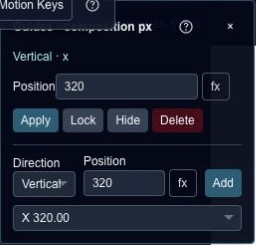
Drag a guide from a ruler or open Guide controls to add one numerically. Positions are composition pixels: vertical guides use X, horizontal guides use Y. Select a guide, type its position and choose Apply. Lock protects a guide from movement; Hide keeps it in the project without showing it; Delete removes it.
For a guide halfway across a 1920-pixel composition, use Calculate once with 1920 / 2, then apply 960. The calculation does not become a live formula. Rulers, guides and cursor measurement lines are editing aids and do not appear in export.
Measure and edit selection gaps#
Select neighboring objects to see horizontal or vertical edge-to-edge gaps. These measurements describe aligned neighbors, not every diagonal distance in the selection.
Click a gap label to open Edit selection gap. Check the named Fixed and Moving objects, enter the distance in composition pixels and choose Apply. Negative values create overlap. Only the identified moving object changes; other selected objects are not automatically redistributed. Apply is one Undo step, and Escape cancels.