
Canvas and drawing tools
Use the canvas to arrange the objects in your composition. The visible workspace can be zoomed and panned without changing the exported composition dimensions.
In this section
Drawing & transform tools
Use Select, Pan, Pen, Move, Rotate, Scale and Anchor tools without losing track of the active editing mode.
Advanced selection
Use box, lasso, circle, paint and rule-based selection to work with several animation layers.
Guides & snapping
Set grid, object, point, guide, pixel, angle and scale snapping for precise placement in Chorono.
Bézier points & splines
Draw editable paths, adjust points and handles, and extend or close a spline in Chorono.
Motion Keys
Use Motion Keys to adjust position keys, draw a movement and control how the path is timed.
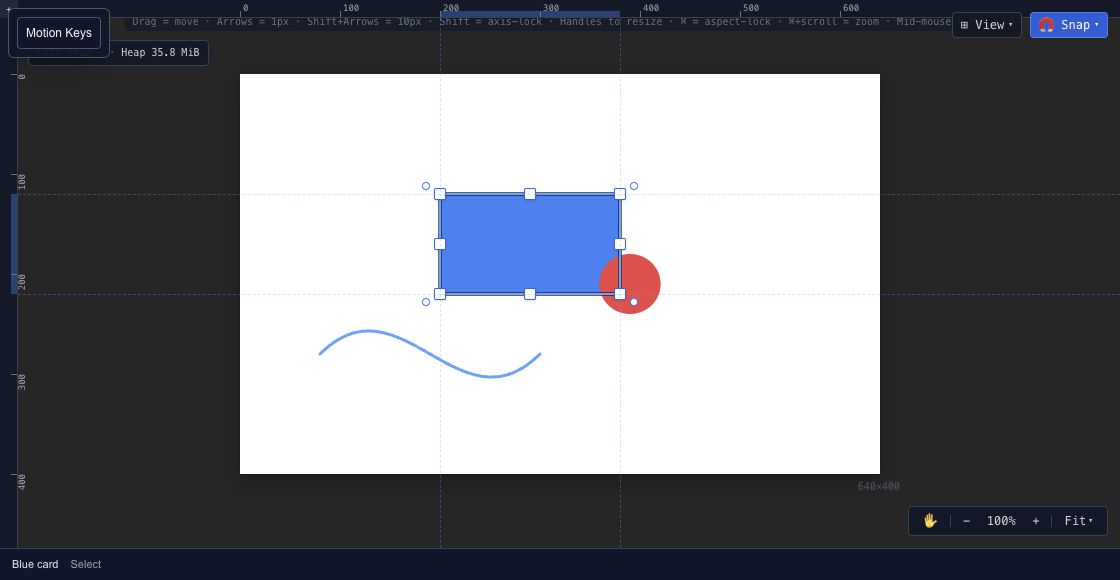
Navigate the composition#
Use the hand tool to pan and the zoom controls to inspect details. Fit brings the composition back into view. Position and size properties describe the scene's coordinates, rather than the size at which the editor happens to display it.
Use the select tool to pick an object, then adjust it with its transform handles or the Properties panel. When objects overlap, select the intended named object from Layers.
Draw shapes and splines#
Create a shape from the toolbar and place it in the composition. Use the spline tools for editable paths. New Spline starts a separate path; Append extends an eligible existing spline. Select the intended spline before extending it.
Keep drawing and selection separate: if a click starts creating another object, return to the select tool. Name new layers in the hierarchy as soon as their role is clear.
Align and inspect motion#
The canvas provides snapping and guide controls for placement. Check the Snap setting when a drag lands on a guide or nearby feature. Use exact property values when a layout needs a specific coordinate.
Motion Keys exposes viewport controls for supported position animation. It complements the timeline; the timeline remains the place to inspect key times, property tracks and easing. Select the appropriate animation and layer before editing a motion key.
Check before exporting#
Scrub the timeline to inspect the beginning, a middle frame and the end. Confirm that moving objects stay inside the intended composition and that text remains readable at the delivery size. Canvas zoom does not set the resolution of an image export.