Skip to content
Skip to content
Workspace

Position, rotate and scale a layer

Select a layer to edit its transform. Moving a shape on the canvas is useful for rough placement; the Properties fields help when two objects need to line up exactly.
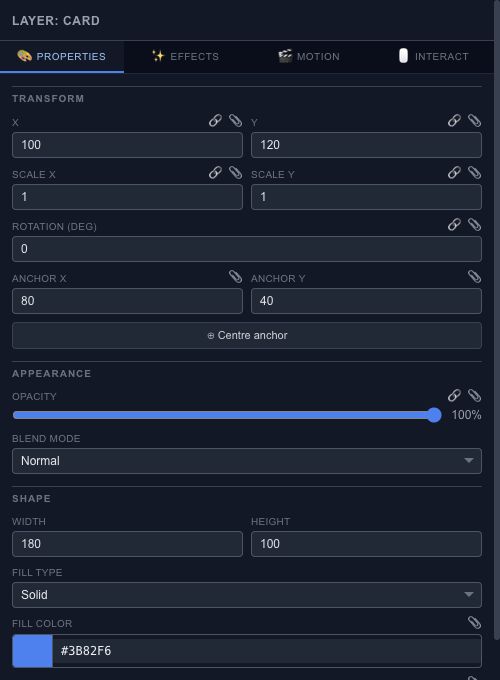
Transform fields and appearance controls for a selected rectangle.

Position and scale#

X and Y place the layer in its parent coordinate space. Scale X and Scale Y change its size relative to the source geometry. They do not replace a rectangle's width and height or a text layer's font size.

Set a position, scrub the timeline and watch the result. If an animated track controls that property, playback may produce a different value from the layer's base value. Edit the relevant keyframe when the change belongs to the motion.

Rotation and anchor#

Rotation is measured in degrees. The anchor is the point around which rotation and scaling act. Centre anchor is useful for a spinning card; an edge anchor suits a swinging sign. Changing the anchor can change how an existing animation looks, so check the whole movement afterward.

Connect or animate a value#

The small connection controls beside supported fields open parameter wiring. Use them when a value should follow another value through a relationship. For a value that changes at specific times, use the Keyframe Inspector.

Choose an animation pivot point#

An anchor point controls the center used by a layer's rotation and scale. In a multiple selection, use the selection center or the active object's pivot to decide how the group should turn. Selecting a parent and child together transforms the selected root once; the child follows through the hierarchy.

The canvas and numeric controls use the same transform rules. Unsupported, singular or lossy conversions are rejected instead of silently distorting the result. A drag remains a preview until release, which commits one Undo step. Escape cancels it.

You can position and edit objects outside the composition. Final output is clipped to the composition, including any visible contribution from effects that extend into it. Canvas handles and other editing overlays are not exported.

A good place to start
Getting started / Chorono documentationChorono documentationLearn Chorono with editable animation examples. Install the editor, edit keyframes, build loops and connect Claude Code or Codex through MCP. Cre…Getting started / Install ChoronoInstall ChoronoSet up the free, open-source animation editor on your computer and start a local browser session. This guide installs the browser editor, its loc…Getting started / Create your first editable animationCreate your first editable animationOpen an editable Chorono example, change its text and colors, inspect the timeline, then save and reopen your first 2D animation. Start with a re…Workspace / Chorono editor workspaceChorono editor workspaceFind the canvas, layers, properties, timeline and resource tools in the Chorono editor. Choose a guide for each part of your animation workflow.…Workspace / Canvas and drawing toolsCanvas and drawing toolsNavigate the canvas, draw shapes and splines, use snapping and edit motion keys in Chorono. Use the canvas to arrange the objects in your composi…Workspace / Choose a drawing or transform toolChoose a drawing or transform toolUse Select, Pan, Pen, Move, Rotate, Scale and Anchor tools without losing track of the active editing mode. Choose the tool that matches the edit…Workspace / Select exactly the objects you needSelect exactly the objects you needUse box, lasso, circle, paint and rule-based selection to work with several animation layers. When several objects overlap, clicking each one can…Workspace / Align objects with guides and snappingAlign objects with guides and snappingSet grid, object, point, guide, pixel, angle and scale snapping for precise placement in Chorono. Snapping helps a dragged object settle on an ex…Workspace / Edit Bézier points and spline curvesEdit Bézier points and spline curvesDraw editable paths, adjust points and handles, and extend or close a spline in Chorono. A curve is easier to control when you can see the points…Workspace / Edit animation positions on the canvasEdit animation positions on the canvasUse Motion Keys to adjust position keys, draw a movement and control how the path is timed. Motion Keys bring position editing onto the canvas. T…Workspace / Layers and scene hierarchyLayers and scene hierarchySelect, name, group and organize scene objects in Chorono using the Layers panel and Scene Explorer. A layer is an editable object in your Choron…Workspace / Draw and edit basic shapesDraw and edit basic shapesCreate rectangles, circles, polygons and procedural shapes, then adjust their geometry in Properties. Basic shapes are a useful starting point fo…
Explore the docs