Skip to content
Skip to content
Animation & interaction

Retiming and staggering keyframes

A stagger offsets similar actions so they happen in sequence. It is useful for a row of cards, a set of dots or a heading whose parts arrive one after another.
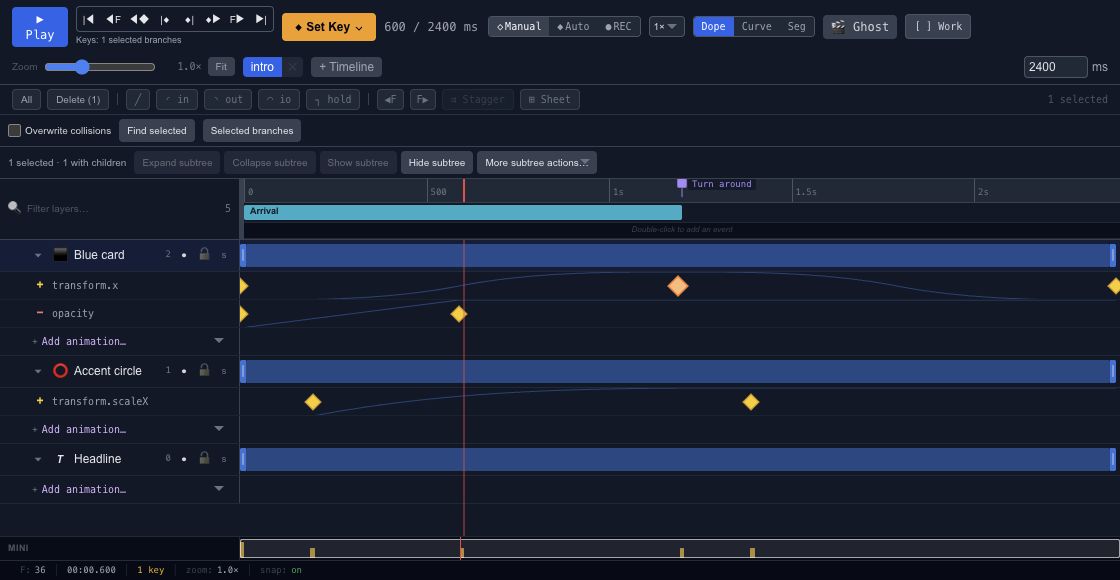
Timeline timing tools above a selected animated track.

Move or stretch#

Moving a group of keys preserves their spacing. Moving only the ending keys changes the duration. Decide which operation you need before dragging, then check that the selection includes all the properties belonging to the action.

Use the available stagger and timing controls for a consistent interval. Start with a small delay and preview the whole sequence. Too much stagger can make the last object feel disconnected from the first.

Repeat outside the keys#

Track out-of-range behavior determines what happens before the first key or after the last. Constant holds a boundary value; repeating and ping-pong modes reuse the motion in different ways. Relative repeat adds the cycle's value change, while linear continuation extends the direction of travel.

These track choices are separate from timeline looping. Check both when motion repeats unexpectedly. For a repeating composition, keep the final-to-first transition in view and follow the Looping animations guide.

Retime keys without accidental collisions#

Move, slide, scale, stagger, paste and spreadsheet edits are reviewed as a group. By default, a move that would place keys on an occupied time in the same channel is rejected as a whole. A timeline boundary also preserves the group's spacing rather than clamping each key separately.

Use Overwrite collisions only when you intend to replace existing, unselected keys at the destination. It never merges two selected keys into one key on the same channel and time. Check the affected channels, apply, then play across both ends of the edited interval. Undo returns the group to its previous state.

Timing changes and keyframe interpolation answer different questions: timing says when a key happens, while interpolation shapes the movement between keys. For controller-generated motion, bake the track before editing it as native keys.

A good place to start
Getting started / Chorono documentationChorono documentationLearn Chorono with editable animation examples. Install the editor, edit keyframes, build loops and connect Claude Code or Codex through MCP. Cre…Getting started / Install ChoronoInstall ChoronoSet up the free, open-source animation editor on your computer and start a local browser session. This guide installs the browser editor, its loc…Getting started / Create your first editable animationCreate your first editable animationOpen an editable Chorono example, change its text and colors, inspect the timeline, then save and reopen your first 2D animation. Start with a re…Workspace / Chorono editor workspaceChorono editor workspaceFind the canvas, layers, properties, timeline and resource tools in the Chorono editor. Choose a guide for each part of your animation workflow.…Workspace / Canvas and drawing toolsCanvas and drawing toolsNavigate the canvas, draw shapes and splines, use snapping and edit motion keys in Chorono. Use the canvas to arrange the objects in your composi…Workspace / Choose a drawing or transform toolChoose a drawing or transform toolUse Select, Pan, Pen, Move, Rotate, Scale and Anchor tools without losing track of the active editing mode. Choose the tool that matches the edit…Workspace / Select exactly the objects you needSelect exactly the objects you needUse box, lasso, circle, paint and rule-based selection to work with several animation layers. When several objects overlap, clicking each one can…Workspace / Align objects with guides and snappingAlign objects with guides and snappingSet grid, object, point, guide, pixel, angle and scale snapping for precise placement in Chorono. Snapping helps a dragged object settle on an ex…Workspace / Edit Bézier points and spline curvesEdit Bézier points and spline curvesDraw editable paths, adjust points and handles, and extend or close a spline in Chorono. A curve is easier to control when you can see the points…Workspace / Edit animation positions on the canvasEdit animation positions on the canvasUse Motion Keys to adjust position keys, draw a movement and control how the path is timed. Motion Keys bring position editing onto the canvas. T…Workspace / Layers and scene hierarchyLayers and scene hierarchySelect, name, group and organize scene objects in Chorono using the Layers panel and Scene Explorer. A layer is an editable object in your Choron…Workspace / Draw and edit basic shapesDraw and edit basic shapesCreate rectangles, circles, polygons and procedural shapes, then adjust their geometry in Properties. Basic shapes are a useful starting point fo…
Explore the docs