
Organize a timeline with segments and markers
Use a segment for a meaningful range such as an entrance, a hover response or an exit. Use a marker for a particular moment, such as the point where an icon changes direction.
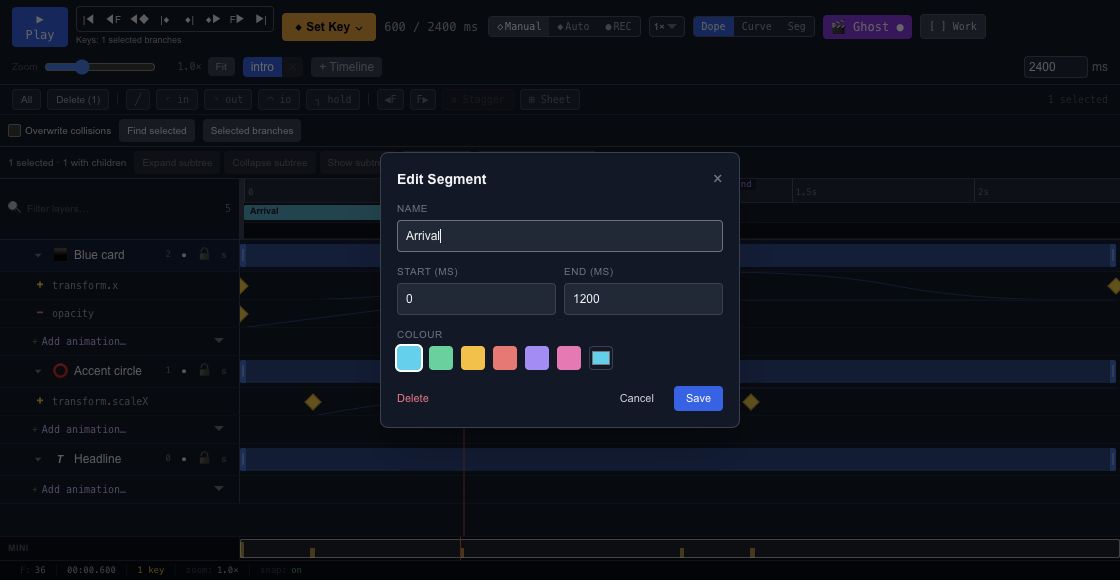
Name a range#
Create a segment and set its start and end times. Give it a name that describes the action rather than its position in the project. Keep the range inside the timeline's duration and preview both boundaries.
A segment does not create a separate copy of the keys. It refers to a range in the existing timeline. Editing those keys also changes the movement inside the segment.
Mark an important instant#
Add a marker at the playhead and give it a useful label. Markers help you return to a visual beat without remembering a millisecond value. They can also be used by the event system when an action should happen at that point.
Play a range through interaction#
Use a play-segment action in Events when an input should run only one part of the timeline. Check repeated inputs and the end of the range in Preview, especially when the same timeline contains several responses.