Skip to content
Skip to content
Workspace

Duplicate layers with Copy or Instance

Use Duplicate for a quick copy. Open Clone / Array → Clone with settings when you need several copies, a deliberate offset or control over how appearance is shared.
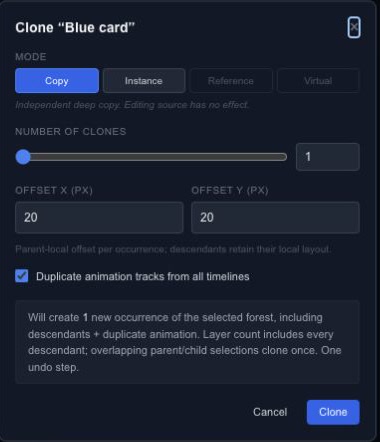
Clone count, offsets, animation copying and Copy/Instance modes.

Choose what stays linked#

Copy creates an independent copy. Instance links appearance while keeping transforms and copied animation independent. For groups, child membership is captured at cloning time; adding a child to the source group later is not a promise that it appears in every instance.

Set the count and X/Y offsets, then decide whether to copy the relevant timeline animations. Check a copied layer's tracks before assuming it starts at the same time as the source.

Try a small change#

Make one instance of a colored card. Move the instance, then change the source appearance and compare both objects. Undo the change to see which part of the relationship is shared. Use Copy when later appearance changes must remain independent.

Reference and Virtual are disabled in the dialog. For repeated placement along a line, grid, circle or path, continue with Arrays.

Duplicate a branch with its animation#

Duplicate, Quick Clone and drag-copy work on the selected source branches. If both a parent and child are selected, the branch is copied once. Internal references, such as parent, mask, path and repeater links, are remapped to the copied layers. References outside the copied branch follow the operation's reference policy.

Animation copying includes tracks targeting the branch across timelines by default. Review the animation option before applying if you want a static copy.

For drag-copy, hold Alt or Cmd/Ctrl before starting the drag. Release the pointer to finish, even if the modifier is still held. Cmd/Ctrl+Shift at the start selects instance dragging. An instance shares supported appearance but has independent animation; its copied child membership is a snapshot, not a continuously synchronized component tree.

A good place to start
Getting started / Chorono documentationChorono documentationLearn Chorono with editable animation examples. Install the editor, edit keyframes, build loops and connect Claude Code or Codex through MCP. Cre…Getting started / Install ChoronoInstall ChoronoSet up the free, open-source animation editor on your computer and start a local browser session. This guide installs the browser editor, its loc…Getting started / Create your first editable animationCreate your first editable animationOpen an editable Chorono example, change its text and colors, inspect the timeline, then save and reopen your first 2D animation. Start with a re…Workspace / Chorono editor workspaceChorono editor workspaceFind the canvas, layers, properties, timeline and resource tools in the Chorono editor. Choose a guide for each part of your animation workflow.…Workspace / Canvas and drawing toolsCanvas and drawing toolsNavigate the canvas, draw shapes and splines, use snapping and edit motion keys in Chorono. Use the canvas to arrange the objects in your composi…Workspace / Choose a drawing or transform toolChoose a drawing or transform toolUse Select, Pan, Pen, Move, Rotate, Scale and Anchor tools without losing track of the active editing mode. Choose the tool that matches the edit…Workspace / Select exactly the objects you needSelect exactly the objects you needUse box, lasso, circle, paint and rule-based selection to work with several animation layers. When several objects overlap, clicking each one can…Workspace / Align objects with guides and snappingAlign objects with guides and snappingSet grid, object, point, guide, pixel, angle and scale snapping for precise placement in Chorono. Snapping helps a dragged object settle on an ex…Workspace / Edit Bézier points and spline curvesEdit Bézier points and spline curvesDraw editable paths, adjust points and handles, and extend or close a spline in Chorono. A curve is easier to control when you can see the points…Workspace / Edit animation positions on the canvasEdit animation positions on the canvasUse Motion Keys to adjust position keys, draw a movement and control how the path is timed. Motion Keys bring position editing onto the canvas. T…Workspace / Layers and scene hierarchyLayers and scene hierarchySelect, name, group and organize scene objects in Chorono using the Layers panel and Scene Explorer. A layer is an editable object in your Choron…Workspace / Draw and edit basic shapesDraw and edit basic shapesCreate rectangles, circles, polygons and procedural shapes, then adjust their geometry in Properties. Basic shapes are a useful starting point fo…
Explore the docs