Skip to content
Skip to content
Workspace

Manage the assets used by a scene

The Assets panel holds the media used by the project. Import a file once, then use the asset in the scene where the format supports it. Give the resulting layer a name that describes its role, such as Background photo or Button sound.

In this section
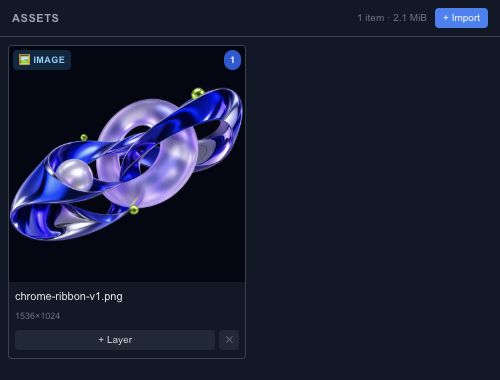
Assets panel with its import and scene-placement controls.

Import and place#

Use the import control to choose files. Image, video and audio layers have different playback and sizing controls, so inspect Properties after adding them. A file appearing in the asset list does not mean every detail of its original format has become editable layers.

For SVG, GIF, sprite sheets and URL-based import, read Import formats before choosing a workflow. In particular, importing a Lottie file currently preserves it as an asset; it does not reconstruct its animation as native Chorono tracks.

Keep a portable project#

Save an editable project and reopen it to check that its media still loads. A temporary browser URL is not a portable file reference. Review export warnings when a file cannot be embedded or loaded.

The Resources panel helps identify large images, video frames and other tracked resources. Use it to find the media worth optimizing, while keeping the original files available outside the project.

A good place to start
Getting started / Chorono documentationChorono documentationLearn Chorono with editable animation examples. Install the editor, edit keyframes, build loops and connect Claude Code or Codex through MCP. Cre…Getting started / Install ChoronoInstall ChoronoSet up the free, open-source animation editor on your computer and start a local browser session. This guide installs the browser editor, its loc…Getting started / Create your first editable animationCreate your first editable animationOpen an editable Chorono example, change its text and colors, inspect the timeline, then save and reopen your first 2D animation. Start with a re…Workspace / Chorono editor workspaceChorono editor workspaceFind the canvas, layers, properties, timeline and resource tools in the Chorono editor. Choose a guide for each part of your animation workflow.…Workspace / Canvas and drawing toolsCanvas and drawing toolsNavigate the canvas, draw shapes and splines, use snapping and edit motion keys in Chorono. Use the canvas to arrange the objects in your composi…Workspace / Choose a drawing or transform toolChoose a drawing or transform toolUse Select, Pan, Pen, Move, Rotate, Scale and Anchor tools without losing track of the active editing mode. Choose the tool that matches the edit…Workspace / Select exactly the objects you needSelect exactly the objects you needUse box, lasso, circle, paint and rule-based selection to work with several animation layers. When several objects overlap, clicking each one can…Workspace / Align objects with guides and snappingAlign objects with guides and snappingSet grid, object, point, guide, pixel, angle and scale snapping for precise placement in Chorono. Snapping helps a dragged object settle on an ex…Workspace / Edit Bézier points and spline curvesEdit Bézier points and spline curvesDraw editable paths, adjust points and handles, and extend or close a spline in Chorono. A curve is easier to control when you can see the points…Workspace / Edit animation positions on the canvasEdit animation positions on the canvasUse Motion Keys to adjust position keys, draw a movement and control how the path is timed. Motion Keys bring position editing onto the canvas. T…Workspace / Layers and scene hierarchyLayers and scene hierarchySelect, name, group and organize scene objects in Chorono using the Layers panel and Scene Explorer. A layer is an editable object in your Choron…Workspace / Draw and edit basic shapesDraw and edit basic shapesCreate rectangles, circles, polygons and procedural shapes, then adjust their geometry in Properties. Basic shapes are a useful starting point fo…
Explore the docs