
Resources and performance
Open Resources to inspect the Resources & Performance panel. It separates tracked project resources, media and rendering measurements so you can understand a scene's workload while editing.
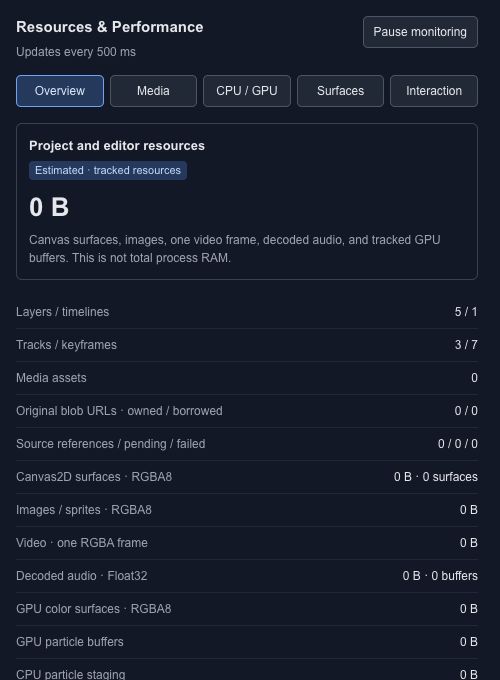
Read the overview#
The overview includes counts such as layers, timelines, tracks, keyframes and media assets. The memory figure is an estimate of tracked resources, including surfaces, decoded media and GPU buffers where tracked. It is not total process RAM and does not measure every browser allocation.
Use Pause monitoring when you want to hold a reading. Comparing numbers from different playback positions or different loaded media is not a controlled performance comparison.
Choose a detail view#
| View | What to inspect |
|---|---|
| Overview | Project counts and tracked resource totals |
| Media | Loaded media and asset-related resources |
| CPU / GPU | Work attributed to rendering and processing |
| Surfaces | Canvas and rendering surface allocations |
| Interaction | Work associated with editor interaction |
Investigate a slow scene#
- Save a copy of the project.
- Return to the same playhead time before comparing changes.
- Inspect large media, dense particle layers and expensive effects.
- Change one factor and replay the same interval.
- Check the intended export or runtime separately.
A responsive editor does not establish how every target device will perform. The runtime package has its own version and capabilities. Use the panel to find concrete work to investigate, and keep visual quality checks alongside resource measurements.
Media resources#
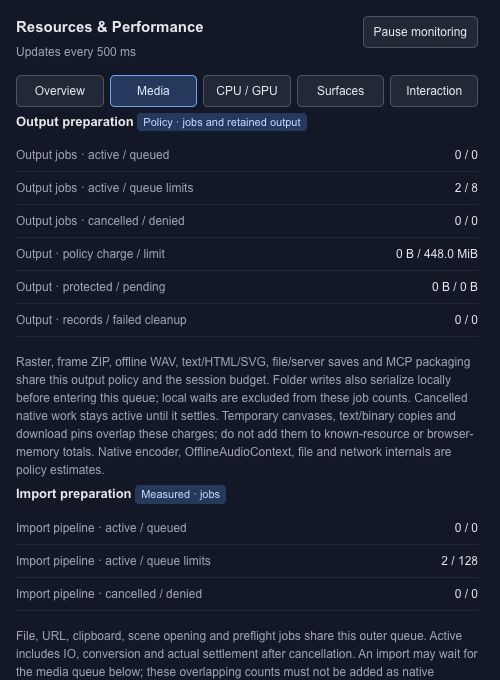
Media covers imported assets, decoded resources and output preparation. Look for pending or failed work before treating a missing picture as a rendering problem. A large original file, its decoded pixels and a prepared export are different allocations.
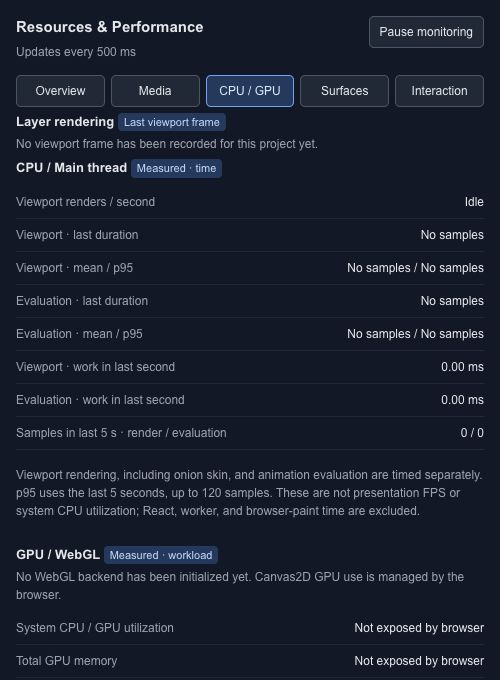
CPU and GPU work#
CPU / GPU shows recorded work such as viewport rendering and evaluation. No samples means there is no measurement to interpret yet. Compare the same scene and playback interval before and after a change; these readings are not a system-wide GPU benchmark.
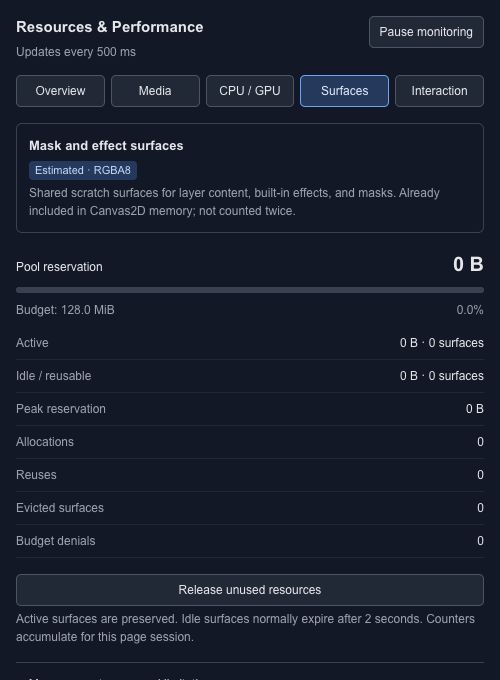
Rendering surfaces#
Surfaces shows the memory reserved for temporary rendering work, including masks and effects. Active, reusable and peak allocations answer different questions. Pool figures that are already part of a total should not be added to that total again.
Interaction diagnostics#
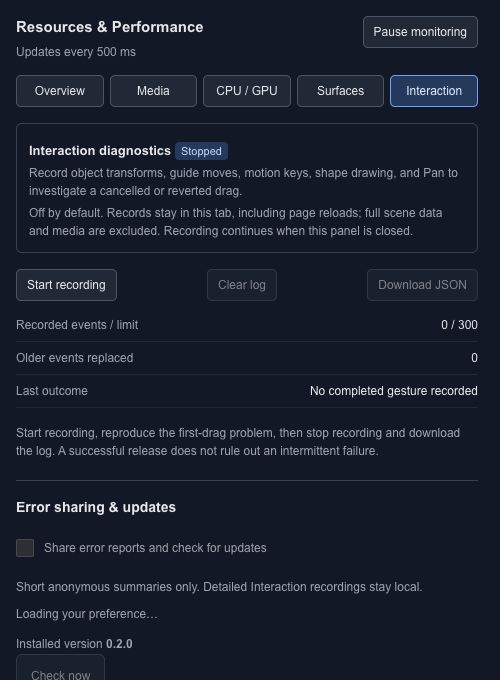
Interaction can record object transforms, guide movement, motion-key edits, shape drawing and panning. Start recording before reproducing a cancelled or reverted drag, then inspect or download the log. Recording is off by default; the panel explains what is retained and provides a clear-log action.
Local interaction recording and remote error sharing are separate choices. Remote sharing requires consent and a configured recipient. Review the disclosed recipient, retention, interval, version and error details before enabling it. Shared summaries contain deduplicated error codes and counts; they do not automatically send scene source, pointer coordinates or raw interaction traces. Version checks and these preferences are available in Resources → Interaction.
Interpret memory and draw measurements#
Tracked resources, JavaScript heap samples and page memory describe different scopes. Do not add them together as though they were separate parts of one total. The panel does not promise system CPU/GPU percentages or total physical VRAM.
Last draw is the duration of a completed draw in milliseconds, not FPS. Heap is the latest available sample. These diagnostic overlays are not exported.
Understand culling and level of detail#
Culling can skip drawing content outside the viewport while preserving mask, shadow and other dependencies. It does not delete source layers. A residency budget limits managed resources; releasing a resource does not guarantee an immediate drop in the operating system's RAM reading.
A level-of-detail proxy can stand in for a static group while its original children remain in the source. Represented, rendered and culled counts answer different questions and are not GPU draw-call counts. Final raster export uses the original sources rather than these viewport proxies.