
Edit a keyframe’s time, value and easing
Select a keyframe to inspect the exact time and value behind its position in the timeline. The inspector is useful when a card must reach a precise coordinate or a fade must finish at a particular time.
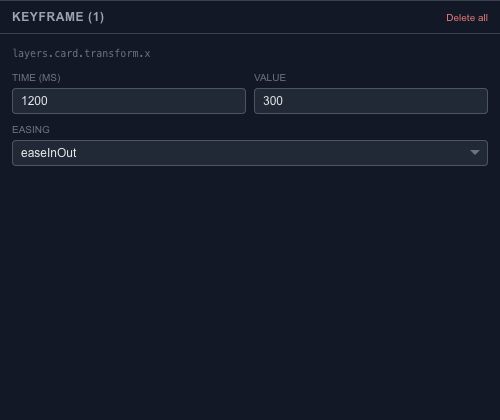
Change one value deliberately#
Set the key's time in milliseconds, then adjust its value in the property's units. Position uses coordinates, rotation uses degrees and opacity uses a normalized value. Check the selected track before typing; the same number has a different meaning on each property.
Commit the edit and scrub through the neighboring keys. Undo restores the previous value if the change moves the animation away from what you intended.
Pick an easing#
Choose linear for a steady transition, hold for a stepped change, or an ease-in/ease-out option for acceleration or deceleration. Custom Bézier easing is available when you need a more specific curve. The easing belongs to the transition associated with that key, so inspect the segment after changing it.
For a group of numeric edits, open the Keyframe Spreadsheet. For adjusting the feel visually, use the Curve Editor.